
- User Management
- Overview Employee Time Tracking (ETT)
- Overview Project Time Tracking (PTT)
- Overview Leave Management (LM)
In TimeTac you can assign the desired TimeTac Version (Employee Time Tracking, Project Time Tracking, Leave Management) to each user. Users are invoiced according to the TimeTac Version that has been assigned to them.
User Management
To change the TimeTac version of a user, open Settings on the left hand side and then navigate to User Management. Select the desired user with a click. In the right side menu you can find the dropdown menu Version under the submenu User Data.
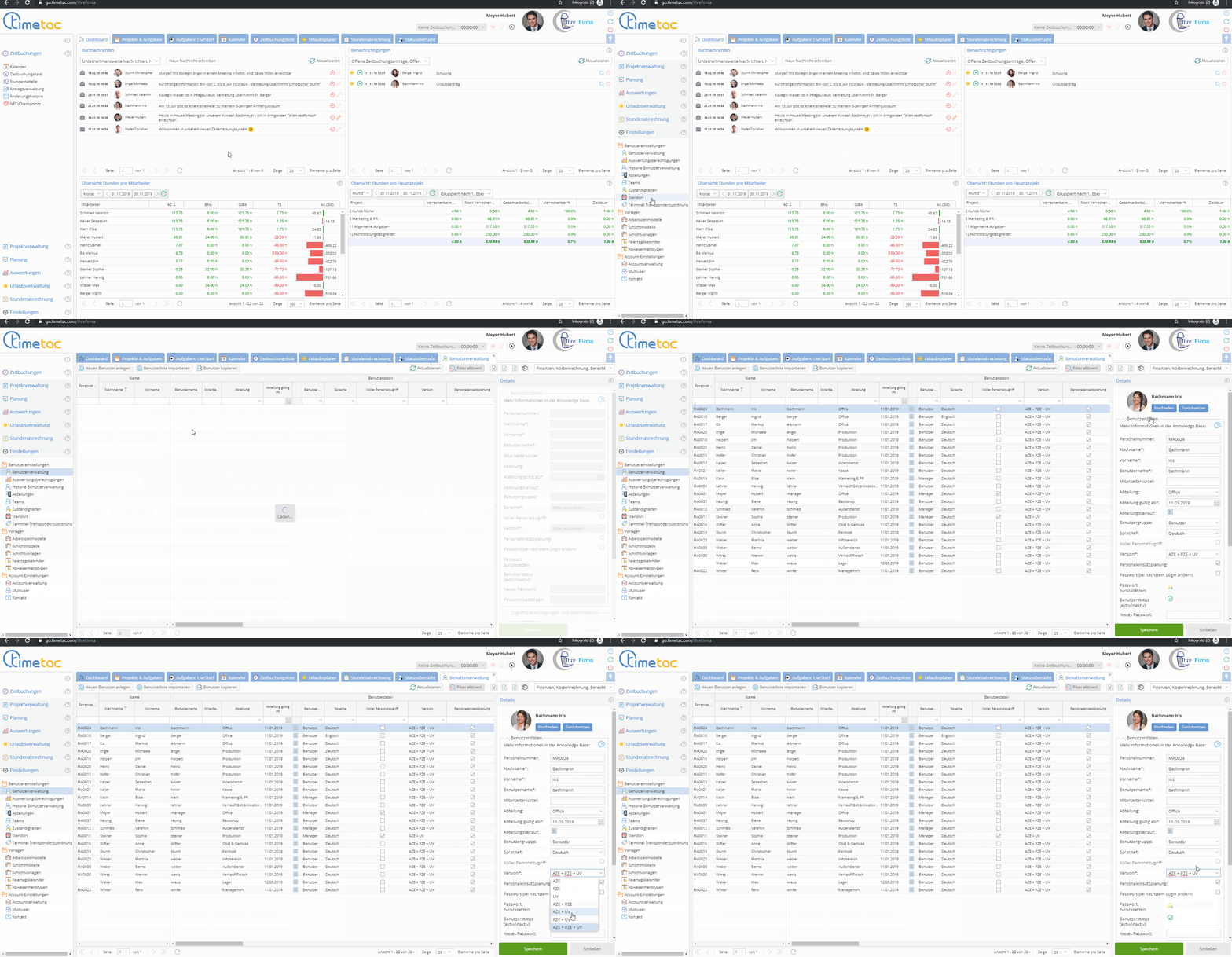
This version setting changes both the menu items displayed and the functionalities available to the respective user.
Versions
These are the versions:
- ETT = Employee Time Tracking
- Employees can track their working hours and breaks. Tasks can be assigned as To Dos to employees (for more information click here: Task Management ).
Employees can view their Timesheet Reports and access their Calendar and Timestamp List. If enabled, they can also see their colleagues in the Status Overview according to their assigned departments.
For more information on Employee Time Tracking click here: Employee Time Tracking – First Steps
- Employees can track their working hours and breaks. Tasks can be assigned as To Dos to employees (for more information click here: Task Management ).
- PTT = Project Time Tracking
- In Project Time Tracking employees can access their Dashboard, Calendar and Timestamp List as well as the Status Overview – these are general Time Tracking menu items. Additionally, employees with the version Project Time Tracking have access to the menu items “Project Management”, “Projects & Tasks” and “Reports”.
For more information on Project Time Tracking click here: Project Time Tracking – First Steps
- LM = Leave Management
Employees with the version “Leave Management” can use the menu items “Holiday Planner” and “Reports”. Within the Holiday Planner employees can access their own Annual Calendar as well as the Department Calendar and the “Manage Requests” tab.
If the Team Feature has been activated, there is an additional Team Calendar (for more information click here: Team Feature – Team Calendar ).
For more information on Leave Management click here: Leave Management – First Steps - ETT+PTT
This is a combination of Employee Time Tracking and Project Time Tracking – therefore the functionalities of both versions can be used.
- ETT+LM
This is a combination of Employee Time Tracking and Leave Management – therefore the functionalities of both versions can be used.
Absences (e.g. leave days, sickness absences) are automatically entered in the Timesheet Report. Additionally the current overtime and the remaining overtime is displayed in the Holiday Planner – employees can request “Comp Time” in order to reduce their overtime balance. - PTT+LM
This is a combination of Project Time Tracking and Leave Management – therefore the functionalities of both versions can be used. In these versions Timesheet Report is not available.
- ETT+PTT+LM
This is a combination of Employee Time Tracking, Project Time Tracking and Leave Management – therefore employees can use all functionalities. Managers with Full Employee Access can via the User Management define whether or not certain menu items (such as Status Overview, Project Planning) are visible for employees.
Shift Planner
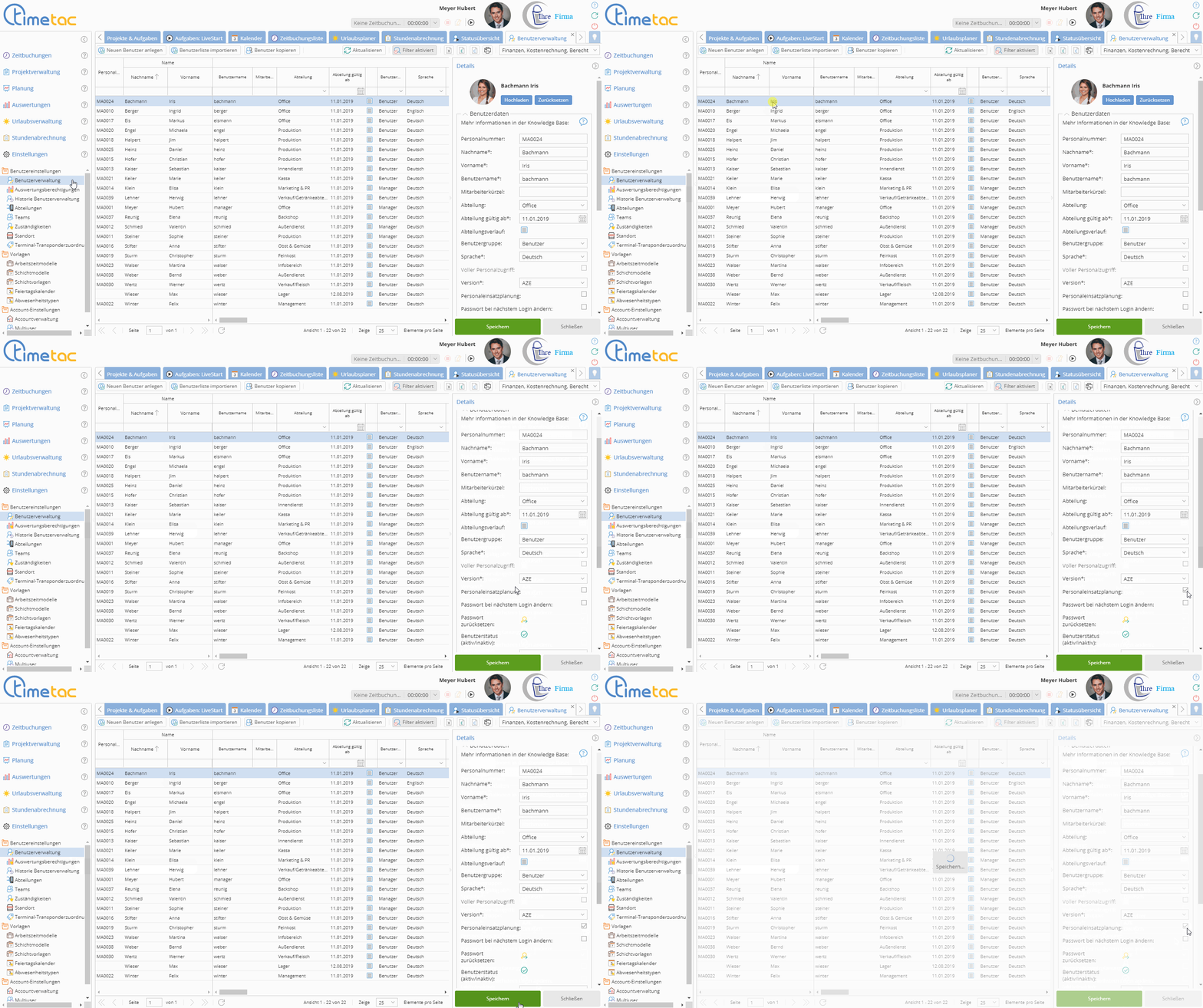
The Shift Planner is a paid additional module which can be activated via the User Management menu.
If you have already activated this module in general, you can assign it to users by ticking the respective checkbox in the column “Shift Planner”.For further information see Shift Planner – Overview
Employee Time Tracking (ETT) View
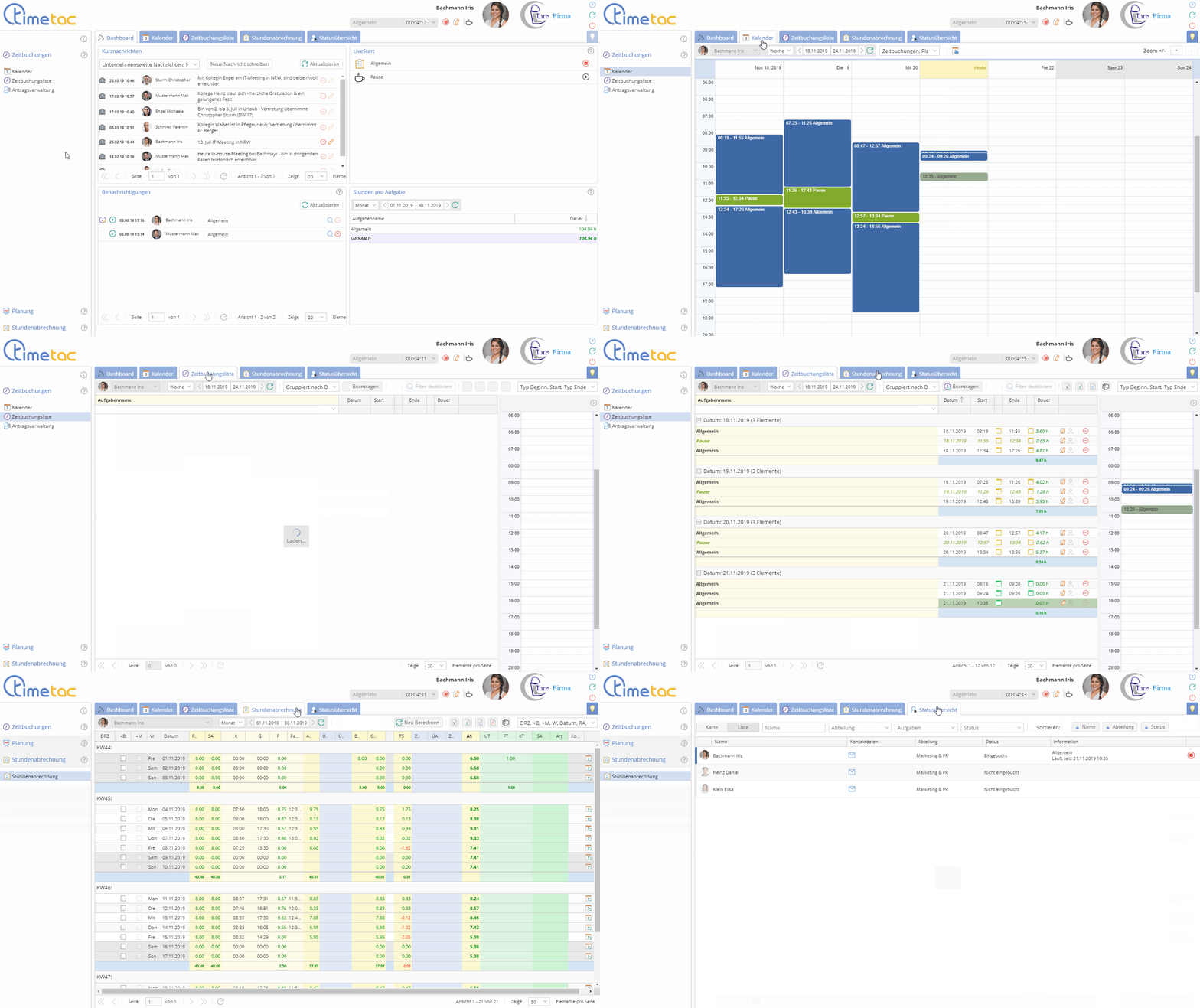
If the Employee Time Tracking module has been assigned to employees, they can access the following menu items:
- Dashboard: for more information see Dashboard
- Calendar: for more information see Calendar
- Timestamp List: for more information see Timestamps List View
- Timesheet Report: for more information see Timesheet Reports Overview
- Status Overview: for more information see Status Overview
Furthermore, employees can change their Personal Settings. If additionally the Shift Planner module has been assigned to the employees, they can access the menu item “Planning” as well. For further information see Change User Details and Password and Shift Planner – Overview.
Project Time Tracking (PTT) View
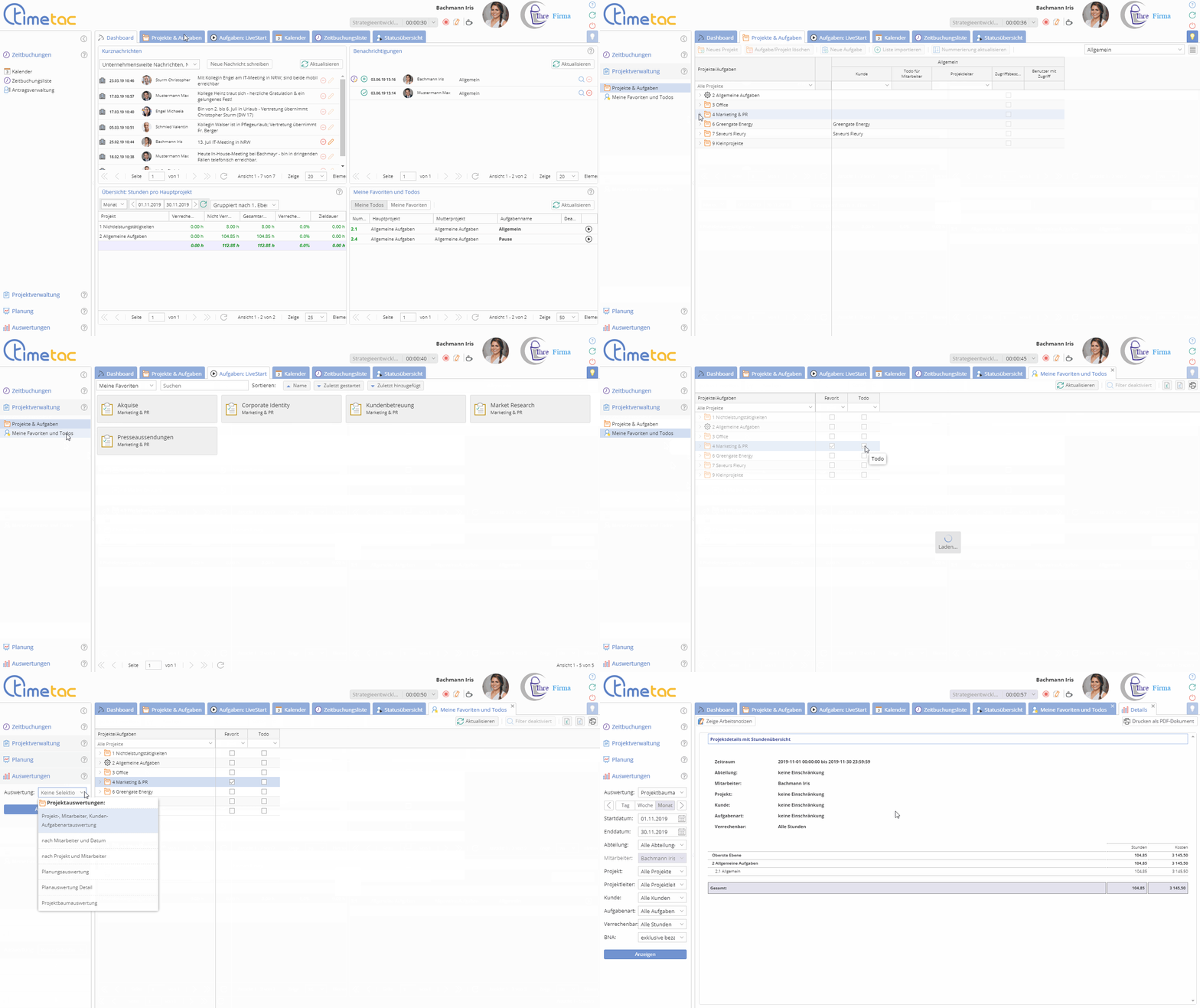
In the Project Time Tracking version the following menu items can be accessed by default:
- Dashboard: for more information see Dashboard
- Projects and Tasks: for more information see What are Projects and Tasks?
- Tasks: Live Start: for more information see Live Time Tracking
- Calendar: for more information see Calendar
- Timestamp List: for more information see Timestamps List View
Depending on the permissions granted to users the following menu items can be accessed in the left side menu:
- Project Management: additionally there is the “My Favorites and To-Dos” submenu. For more information see Allocate Favourites and To-Dos
- Planning: if the Project Planning feature has been enabled, the “Project Planning” submenu can be accessed. For more information see Project Planning Overview
- Reports: with the Project TimeTracking module you can access different reports depending on the Report Permissions that have been granted. For more information see Reports Overview and Report Permissions
Leave Management (LM) View
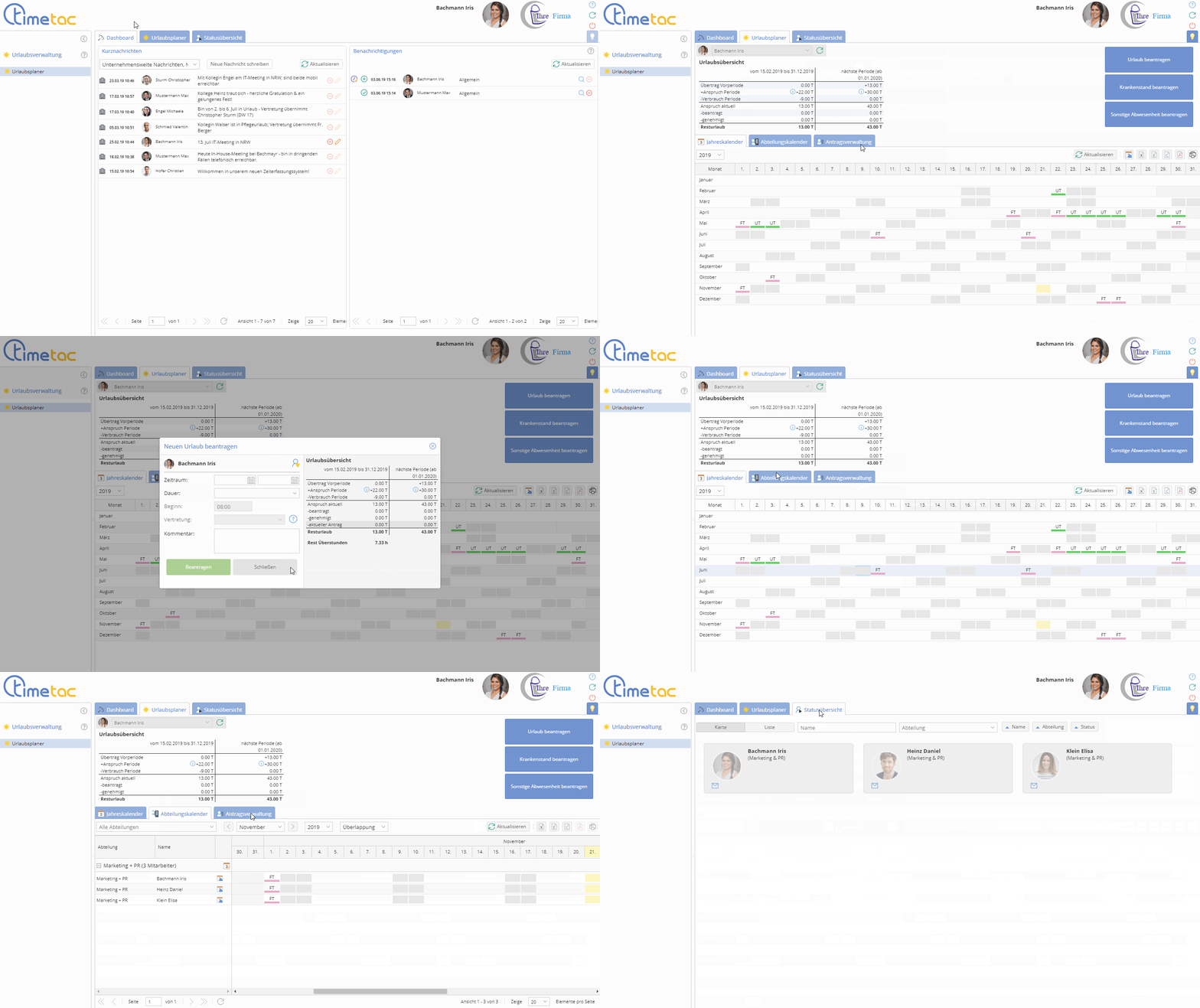
In the Leave Management module employees can access the following menu items:
- Holiday Planner: employees can request absences and choose from different calendars. Furthermore they have access to the Manage Requests tab.
For more information see Holiday Planner, Annual Calendar, Department Calendar, Manage Requests and – if activated – Team Feature – Team Calendar - Status Overview: for more information see Status Overview
Change from ETT+LM to LM only
- With the only Leave Management (LM) active, users cannot access the Calendar, the Timestamp List and Timesheet Report.
- If a manager’s authorization for the Employee Time Tracking (ETT) version has been revoked, this manager cannot process Timestamp Change Requests.
- The daily Target Working Hours are set to zero – this also applies retroactively.
- Before changing to the LM only version, the “+M”-column in the Timesheet Report can be approved. This prevents daily Target Working Hours from being set to zero retroactively.
- Open Timestamp Change Requests cannot be processed if the version has been changed to LM only.
- If the setting “Book working time automatically as per work schedule” has been activated for a user, these automatic timestamps will still be booked – even after the version has been changed to LM only.
Since in this case the daily Target Working Hours have been set to zero, each automatically booked timestamp leads to a positive Daily Balance. For more information see Automatic Timestamps


