
To make sure that an employee leaves/exits TimeTac correctly, navigate to the left side menu and select Settings. Click on User Management in the sub menu User Settings. Select the employee who leaves your company with one click. In the right side menu, the details of the selected employee open automatically. Click the arrow next to Work Schedule, Public Holidays to open the tab.
Exit Date
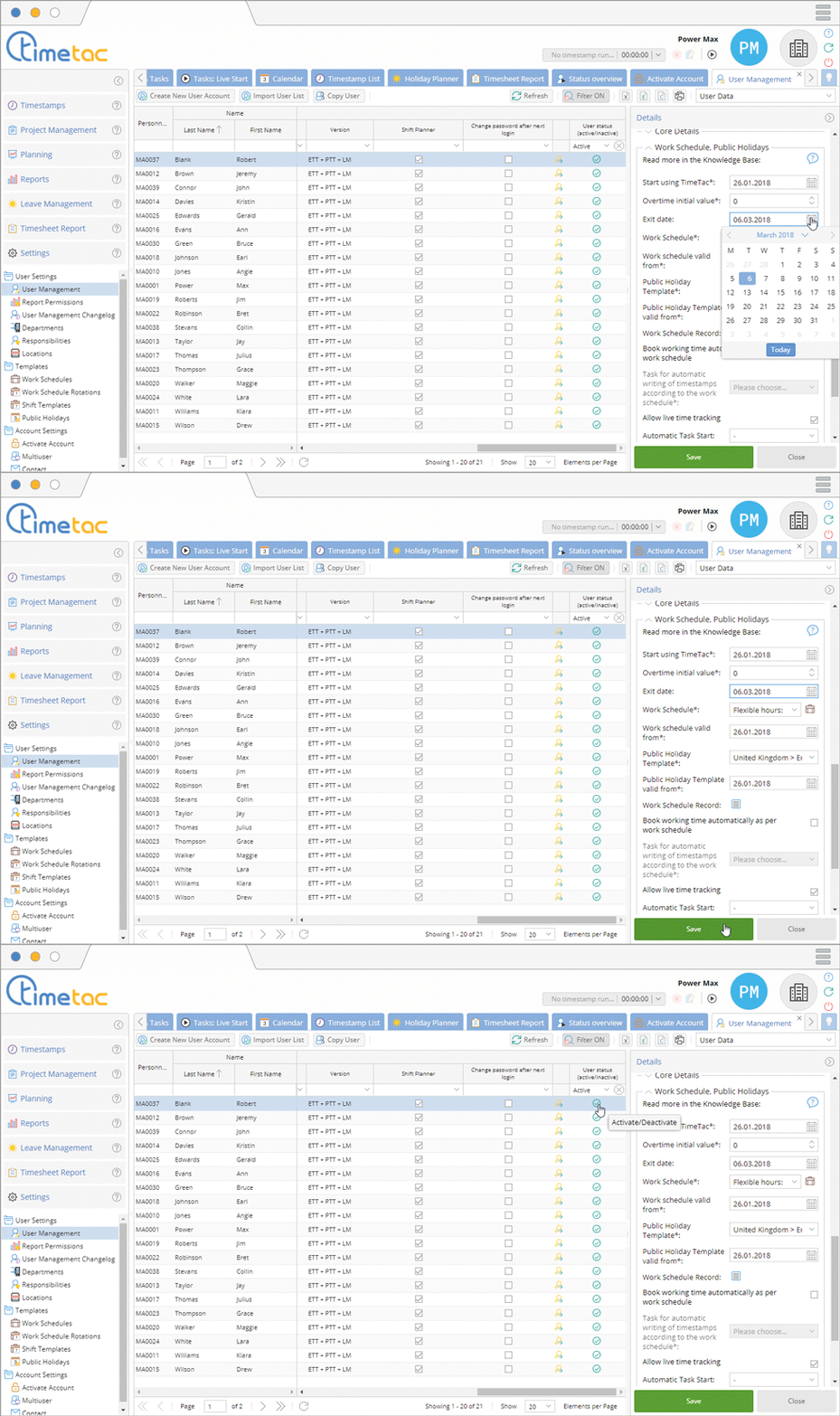
Now enter the exit date with a click on the calendar next to Exit Date and click on Save. On the exit day, click on the green check mark in the column User Status to deactivate the employee.
Find out more here: Enable/Disable Users
Leave Management

If Leave Management is activated, navigate to the sub menu Leave Management and click on Pro Rata Exit. The remaining vacation days are calculated automatically. You can change the leave days to the required value in the field Leave Entitlement Exit Value.
Correction of the Exit Date
If the wrong exit date has been entered for an employee, navigate back to the User Management. Click the arrow next to Work Schedule, Public Holidays to open the tab. Now enter the correct date with a click on the calendar next to Exit Date. Activate the employee again if you have already deactivated them and you have now entered a later exit date.


