
Thank you for choosing the Leave Management solution from TimeTac. The following are recommended steps to get used to TimeTac and to optimally setup your account so that it is ready for your employees to use.
-
Login
You can use TimeTac in any modern desktop browser by navigating to go.timetac.com/(accountname).
Enter your Username and Password, then proceed to login.
Read more: How to Use TimeTac
-
Dashboard
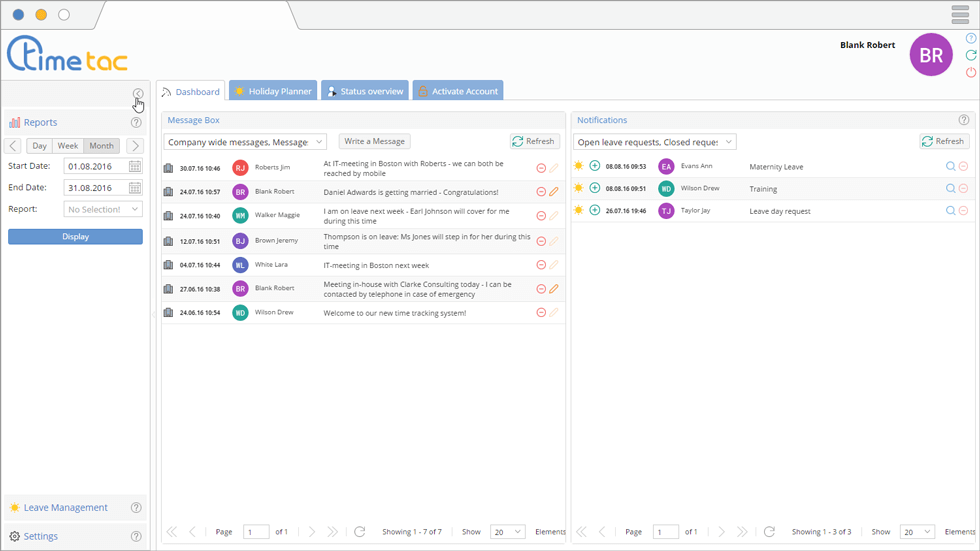
The is the homepage of TimeTac, showing you key information, such as working hour statistics, notifications and messages from other employees.The main options are displayed in tabs across the top. There is also a side menu on the left-hand side. You can open and close this by clicking on the arrow button located near the top.
Read more: Dashboard
-
Change your Password and Contact Details

As we are currently on the , click on the button. This can be found in the top right corner of every screen.Read more: Change User Details and Password
-
Screen
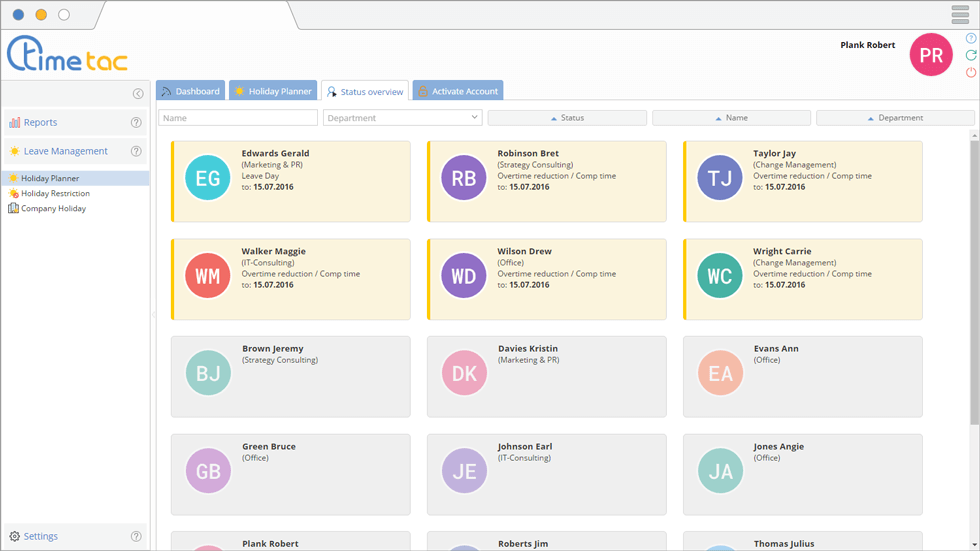
The tab shows you the current working status of employees within your department. Only Managers have access to this screen by default, but it can be enabled for individual Users as well. This is convenient for seeing who is currently online, absent, sick etc.Read more: Status Overview
-
Holiday Planner
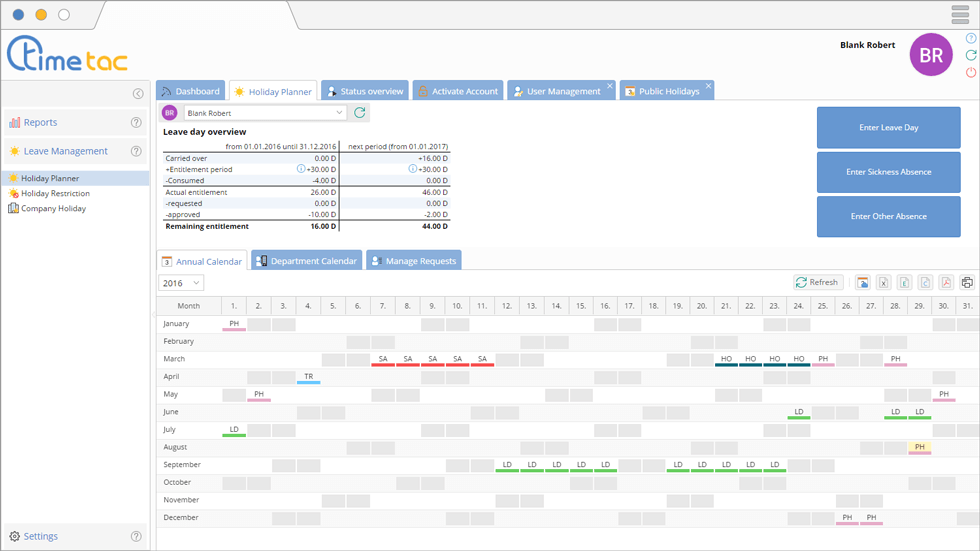
The is the central focus of the Leave Management solution. The display is split into an upper section with information regarding your leave entitlement, while the bottom section has several tabs to switch between certain displays, such as the Annual Calendar and Department Calendar.Read more: Holiday Planner
-
Entitlement
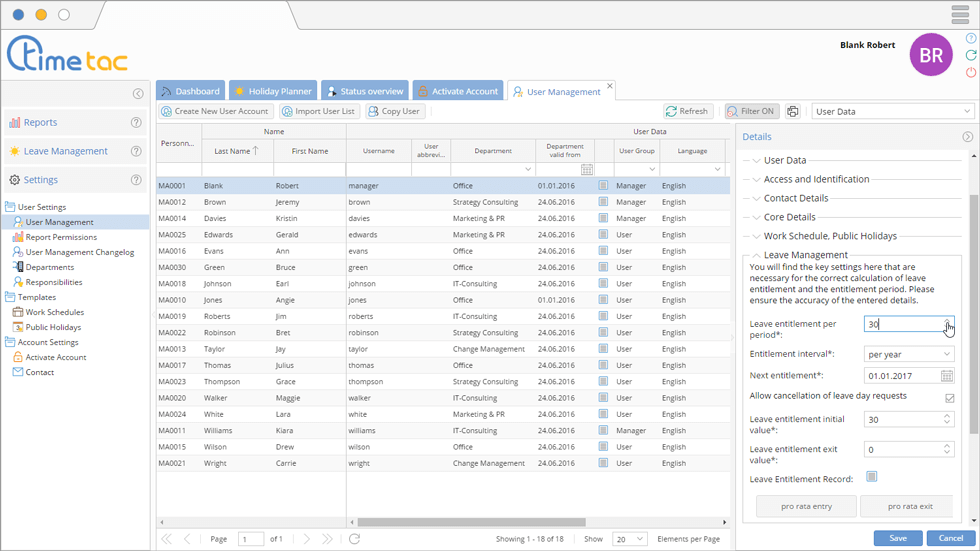
After configuring a few settings for your employees, their holiday entitlement and the renewal period will be automatically maintained within TimeTac. When the new entitlement period occurs, the holiday entitlement is updated. When an employee takes time off work, the entitlement is automatically reduced. There is no need for manual editing.Read more: User Management
-
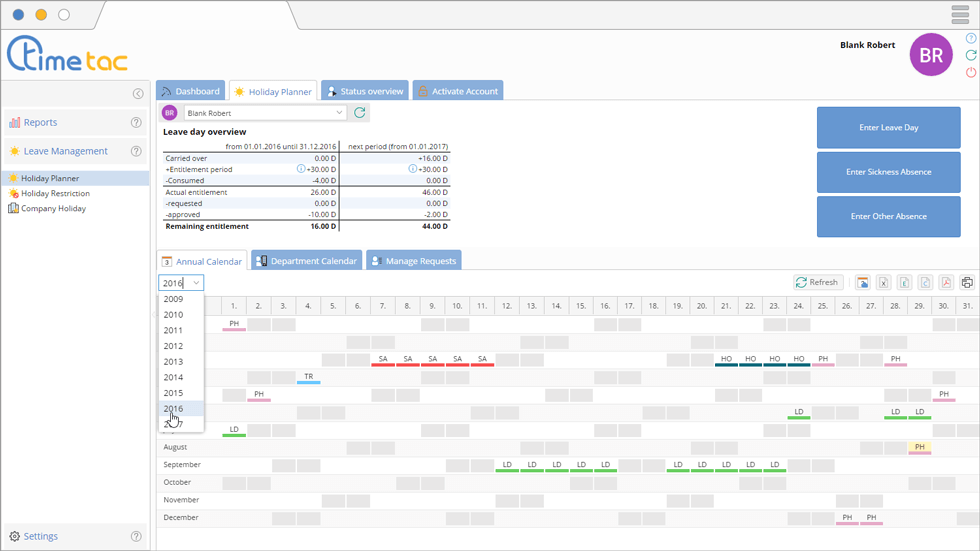
The displays an overview of an employee’s calendar year. It can display working and non-working days, as well as public holidays, leave days, sickness and other absences. The different coloured blocks make it easy to distinguish absences and prove to be a useful planning tool.Read more: Annual Calendar
-

Similar to the , the allows employees to see when their colleagues will be absent. Whether the type of absence is shown can be configured.Read more: Department Calendar
-
Request Leave Day
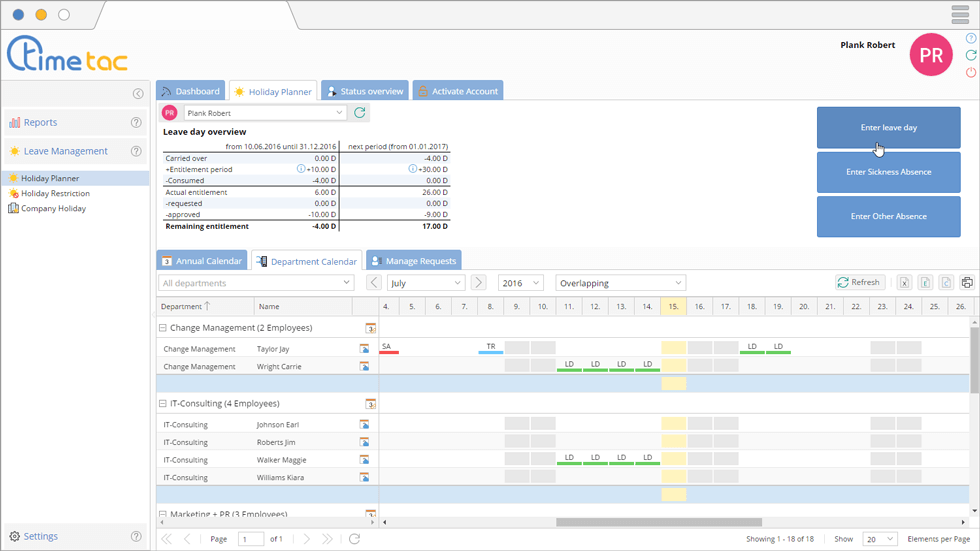
Click on the button to request time off from work. The input window allows you to enter the dates you are requesting. Requests for time off must be approved by the relevant manager, who will receive a notification of the request on their and via e-mail.Read more: Holiday Planner
-
Sickness
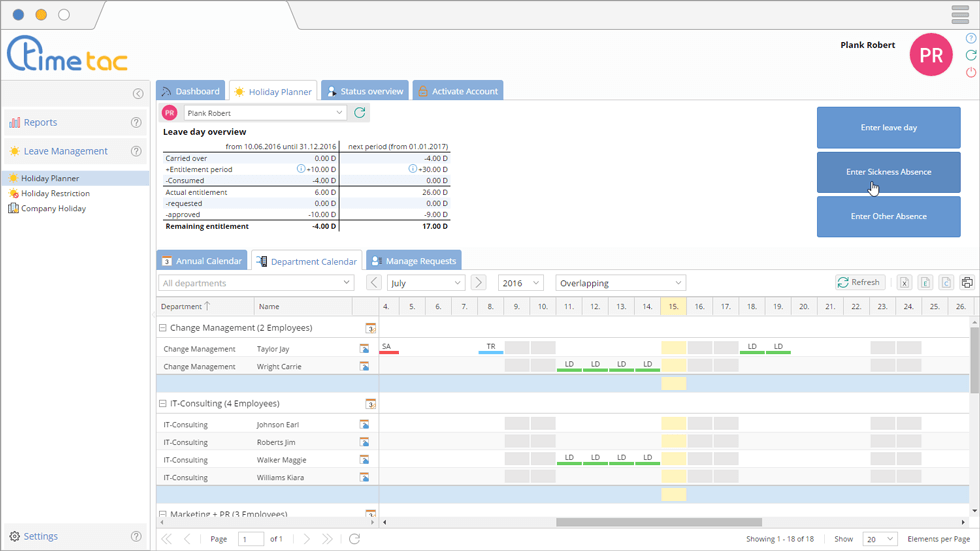
If an employee is absent from work due to sickness, then they can input their absence here. Their manager will automatically be informed of the sickness.Read more: Holiday Planner
-
Other Paid Leave
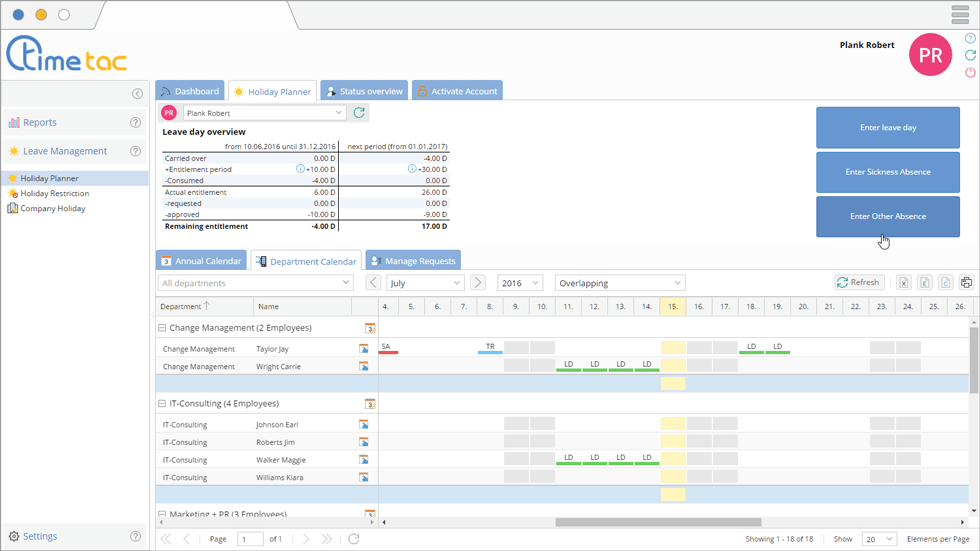
Other absences can also be managed in TimeTac. These represent special circumstances for absence, such as maternity leave or training courses. Which absences are available and how they are used is at your discretion. We will more than happily customise and add further absences if you need them.Read more: Holiday Planner
-
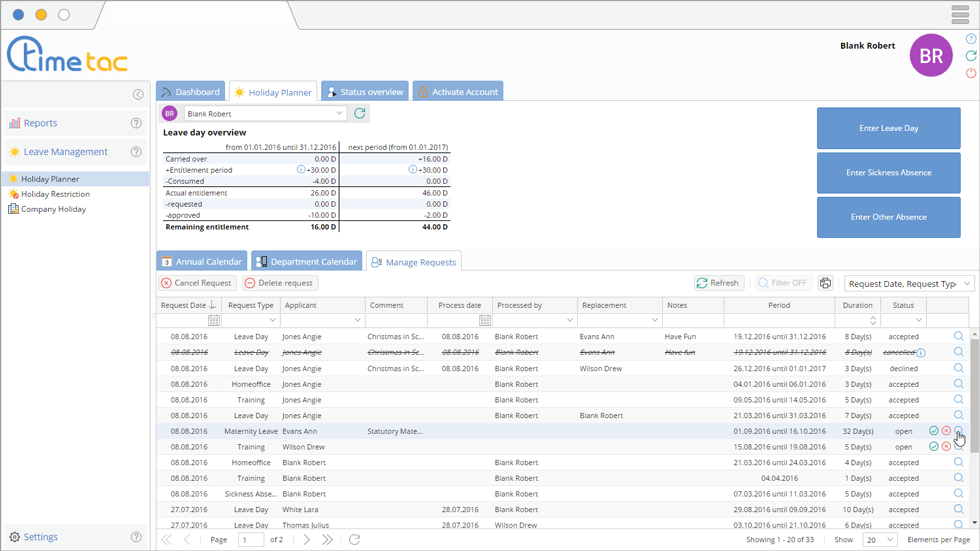
The tab allows you to see a history record of absence requests. You can see when an absence was requested, what the current status of that request is and by whom it was processed.Read more: Manage Requests
-
Create Departments
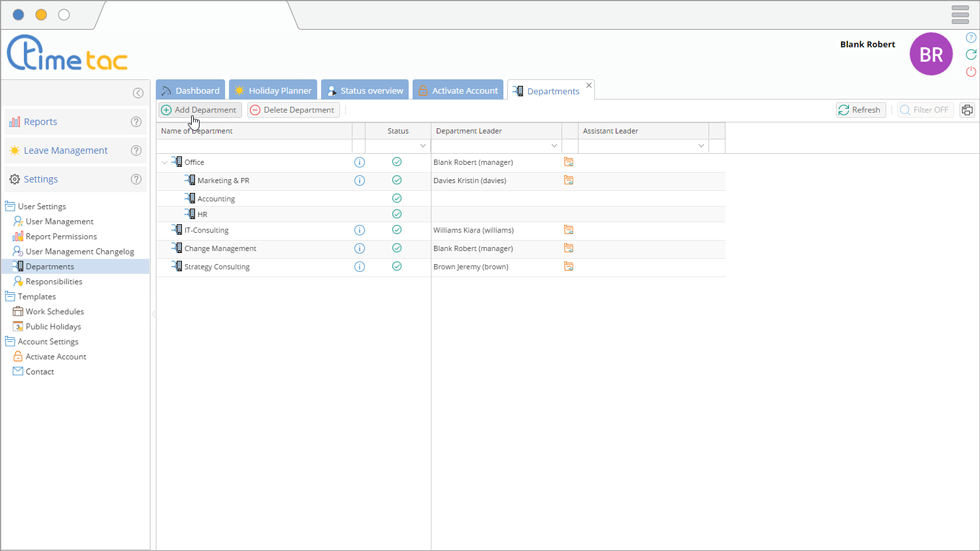
You can create departments and organise the department structure of your company as you wish within TimeTac. Even if you are a small company with no departments, it’s still worth learning about the features of departments as you will learn more about which data employees can view within your company.Read more: Create Departments
-
Create User Accounts for Other Employees
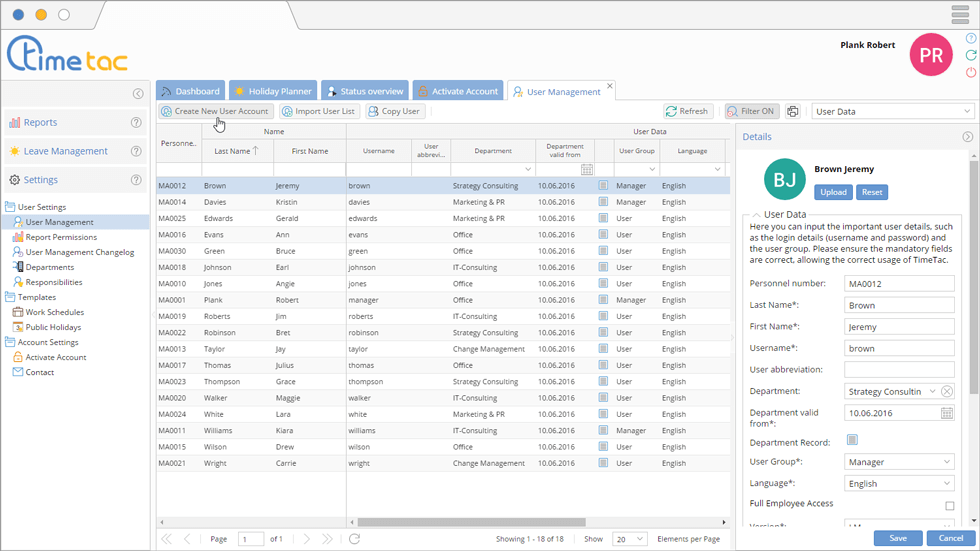
It is recommended to read the articles about individual permissions and user types in TimeTac before creating users. Once you have this knowledge in mind, you can then create a user and modify their permissions as you see fit. You can make the entire process of account creation much quicker and more efficient by copying a pre-existing user with the desired permissions.If you are a large company, then there are also options to import multiple users at once.
Read more: Types of User, User Permissions, Create User
-
Responsibilities
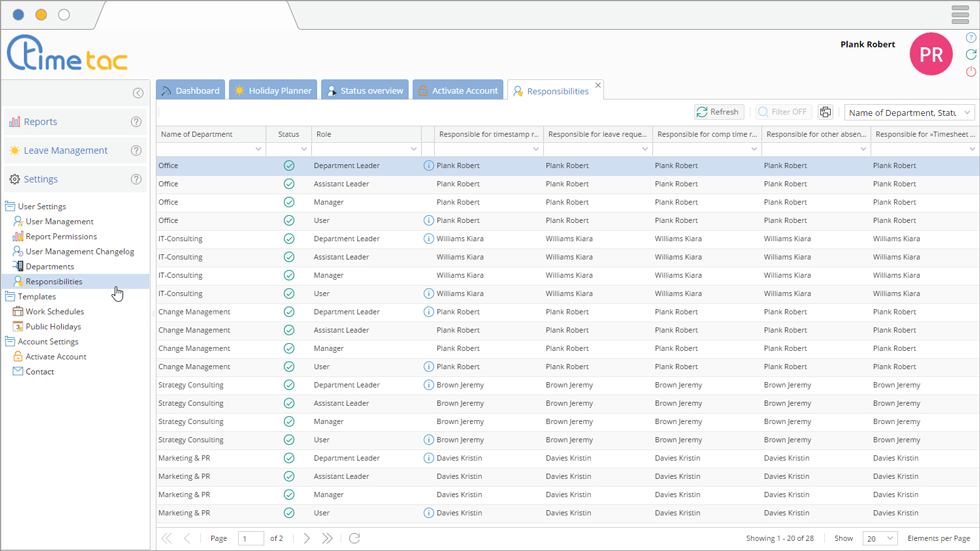
The menu allows you to define who is responsible for processing the different types of requests. This is the department leader by default, but this can be customised to match your needs.Read more: Responsibilities
-
Holiday Restriction

If there are particular times of year when employees are essential to business operations, you can prevent the request of absences using the feature. You can define restrictions for the desired time frame and the applicable departments. -
Company Holiday

If your organisation closes during particular festivals or holidays, you can automatically enter absences for employees during those given time frames via the menu. You can specify the applicable departments, as well as the type of absence to be entered.


Ready to Start Using TimeTac?
We hope this guide has helped you get up and running with our Leave Management solution. If you have any questions, please feel free to contact us.
If you are ready to start using TimeTac within your company, we suggest you navigate to the screen and click on . This will remove all the demo generated content that was present when you first logged in, such as demo users and demo notifications. It will not remove anything you have created yourself.
The next step is to head to the tab. This will activate your account so that you can continue to use it after the trial phase has ended.
Thank you for using TimeTac!


