

TimeTac allows you to see changes of timestamps that have been made. Open the left side menu Timestamps and click on the sub menu Timestamp Changelog. Now all the changes that have been made are displayed. You can see all changes that have been made for a particular user, who made the changes and how the timestamp itself changed.
Columns
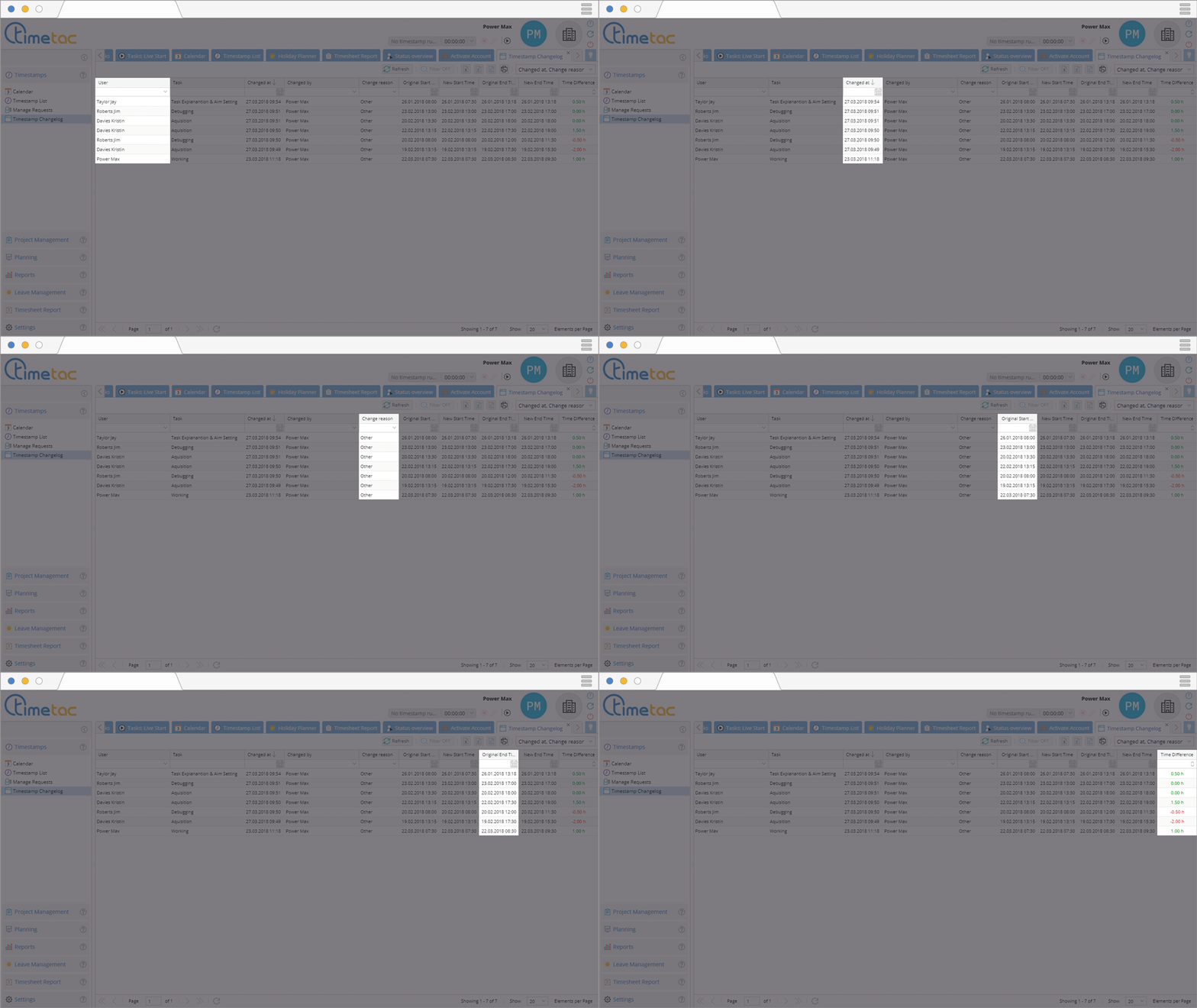
In the menu Timestamp Changelog you can see various columns which display different information:
- User: This column shows the name of the employee for whom changes of timestamps have been made.
- Task: Here you can see the task name of the timestamp that has been edited.
- Changed At: This column displays the exact time the timestamp has been edited.
- Changed By: Here you can see the name of the manager who edited the timestamp.
- Change Reason: Here you can see why the timestamp has been edited. There are three different options:
- Other: all changes that have been made manually.
- Break Rule: all changes due to break regulations.
- Rounding: all changes due to automatic rounding in case it is activated.
- Original Start Time: This column shows you the original start time before any changes have been made.
- New Start Time: Here you can see the new start time after the timestamp has been edited.
- Original End Time: This column shows you the original end time before any changes have been made.
- New End Time: Here you can see the new end time after the timestamp been edited.
- Time Difference: The time difference between the original timestamp and the edited timestamp is displayed here. If break regulations are activated, longer time blocks are often divided into two smaller time blocks in order to record breaks.
Filtering, Sorting and Adapting the View
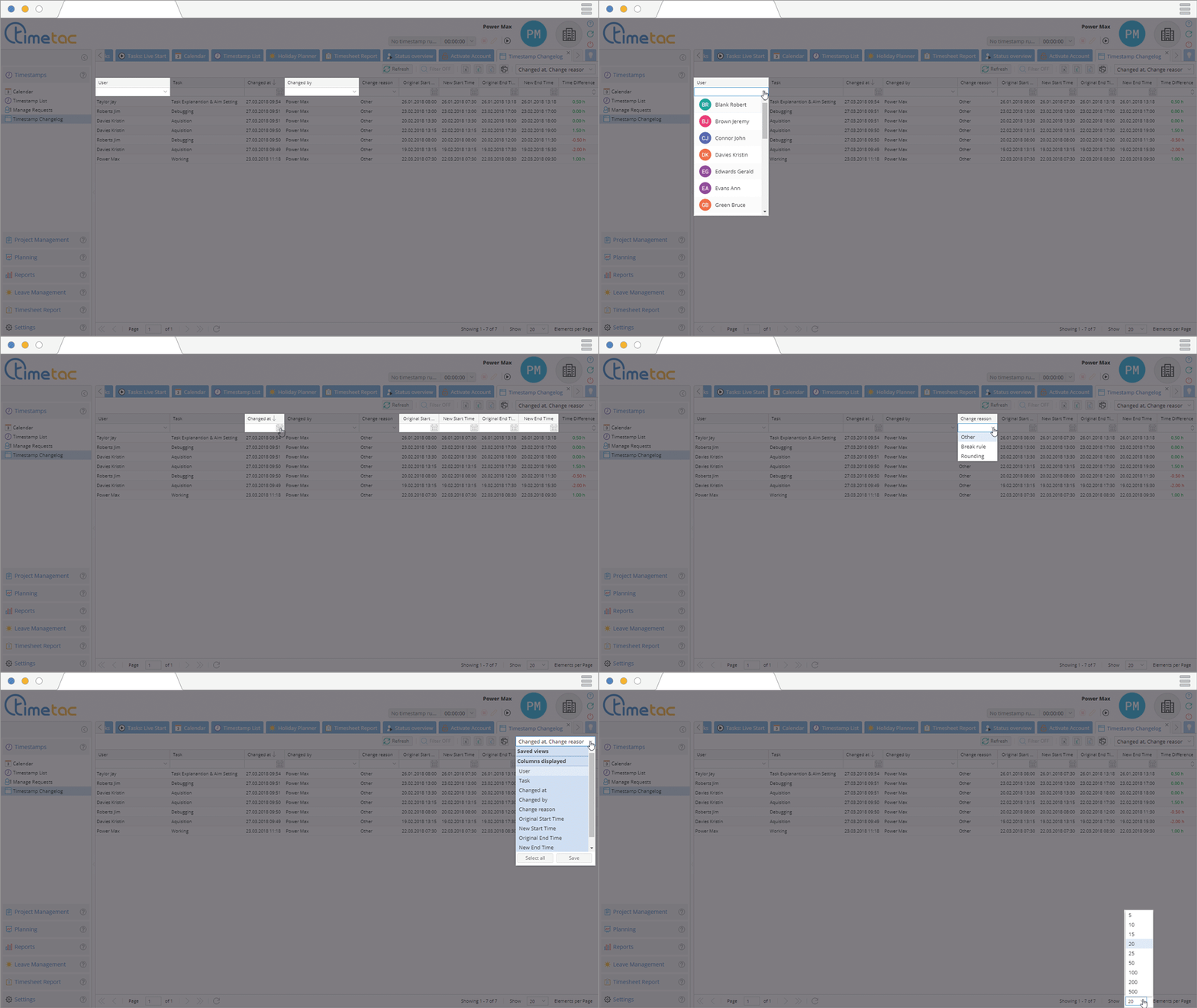
As a manager with access to the timestamp changelog you can adapt the view to your needs. If you use TimeTac for a long period of time, the timestamp changelog will have numerous entries. How they are presented is your choice.
- Adaption of the User/Manager: In the column User and Changed By you can select an employee or manager with a click on the small arrow symbol. Now you can see all changes that have been made for this particular user or all the changes the manager has made.
- Adaption of the time period: In all columns with a calendar symbol you can adapt the displayed time period with a click on this calendar symbol.
- Change Reason: Here you can select between Other, Break Rule and Rounding.
- Columns: Via the drop down menu in the upper right corner you can adapt the displayed columns.
- View: On the bottom of the timestamp changelog menu you can switch between the pages using the arrow keys. You can also use the drop-down menu to adjust the number of items displayed.


