

With TimeTac you have the opportunity to track every change a user has made to any user settings. To review the changes, go to the menu Settings and select User Management Changelog.
Columns

The different columns in this menu give details about several aspects concerning the change.
- Change Date: Shows the date and time the change was made.
- Changed by: Here you can see who made the change.
- User: Shows the user the change was made for.
- Type: Shows which setting in User Management has been changed.
- Old Value: Here you can see the value before the change.
- New Value: Here you can see the value after the change.
Filter Options
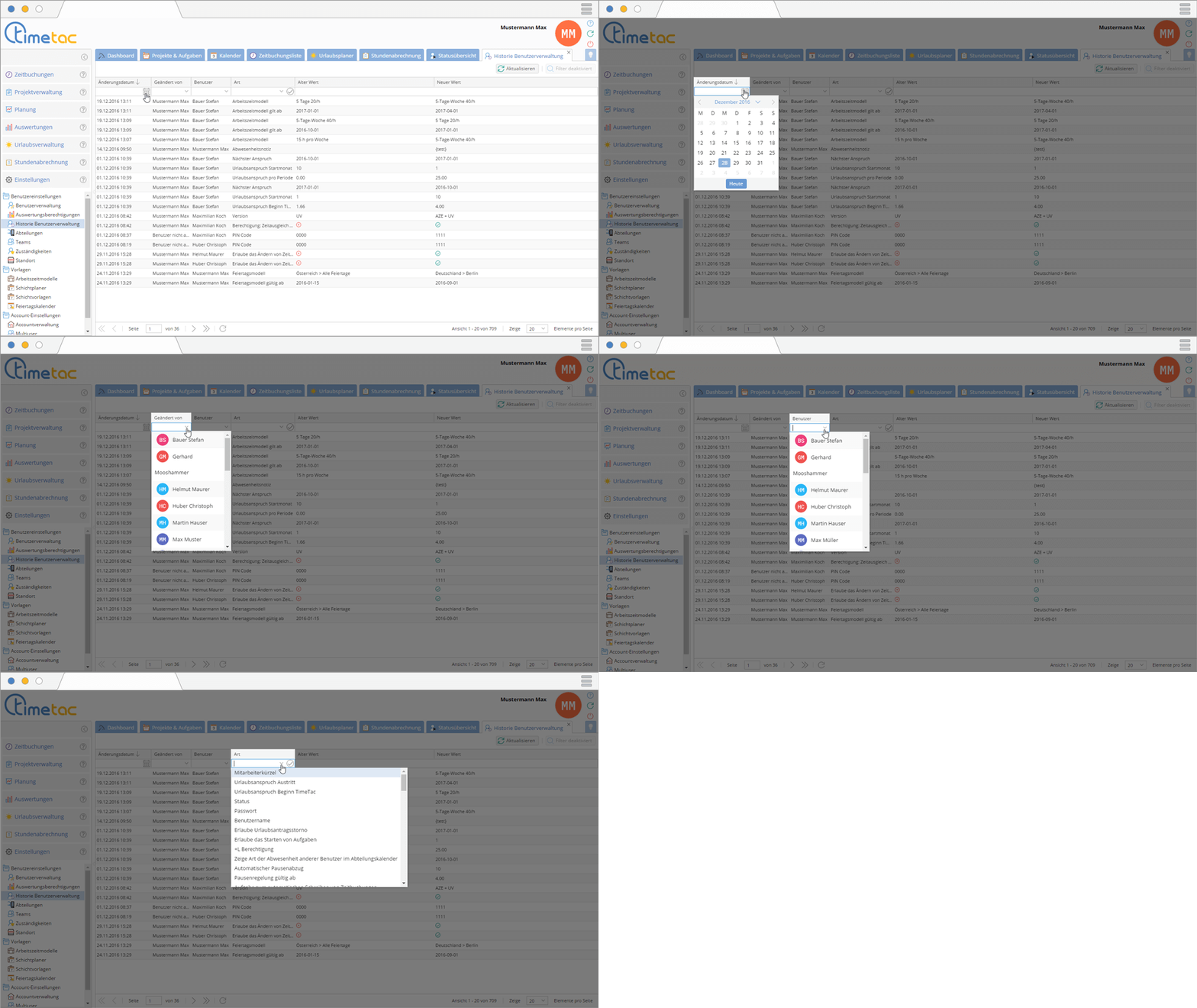
The menu User Management Changelog offers several possibilities to filter, in order to quickly find requested changes.
- Change Date: If you want to know the exact date when a change was made, click on the calendar symbol to filter for a particular day.
- Changed by: Open the dropdown menu and select the person concerned.
- User: Open the dropdown menu and select the user, for whom the change was made.
- Type: If you want to look for changes of a particular type, open the dropdown menu and select the type.
Sorting Options

You have the opportunity to sort the menu User Management Changelog by three columns in ascending or descending order. Click on the top row of the colums Change Date, Old Value or New Value. The arrow shows you whether the column is sorted in ascending or descending order.
More information can be found here: User Management


