
If you want to use a central hardware that allows multiple employees to record their working time, you need a multiuser access.
Any hardware can be used for the multiuser access, e.g. a tablet as a terminal in the entrance area – the only requirement is a web browser with Internet access. With multi-user access, all employees noted in the system can record their hours.
New Multiuser Access
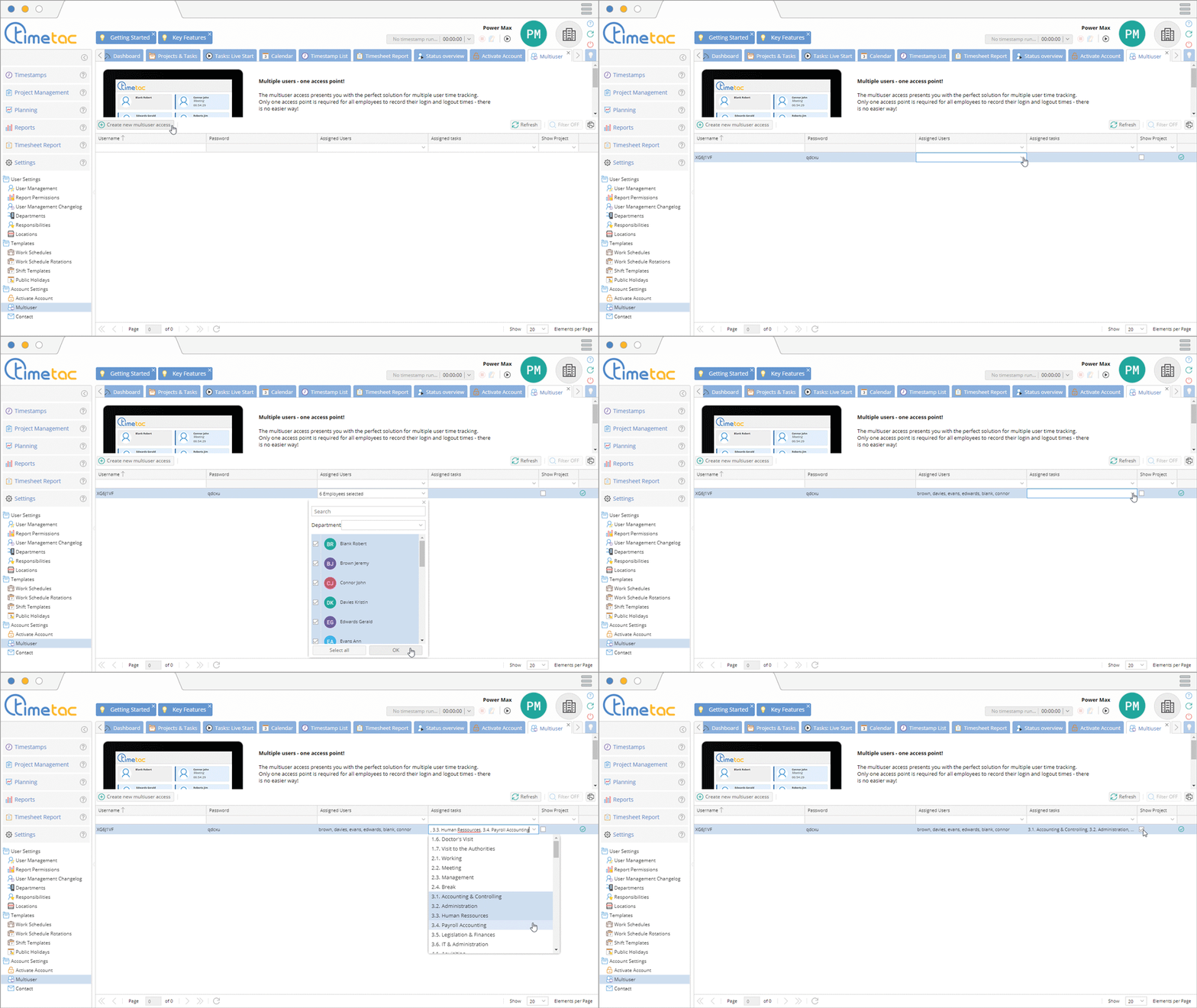
Click on Create new multiuser access. Username and password of the new multiuser access are generated automatically. With a double-click in the column Assigned users you can assign employees to the access. You can add tasks in the Assigned activities column. Optionally you can display the corresponding project to a task by activating the checkbox in the column Show project.
Login

Go to https://go.timetac.com/[account name] in your browser. Enter the user name and the specified password in the login window. Confirm the login by clicking on Login. No manual logout from the multiuser access is required. If you still want to log off multiuser access, e.g. during non-operating times, just click on Logout as usual.
Tip: We recommend that you save the login data for the multiuser automatically and to set the website as the start page in the browser of the device on which the multiuser access is running.

Now simply select your name in the user interface of the multiuser access. You will be asked to enter your pin code. Once you’ve confirmed your own pin code, you can start with time tracking.
Start and Stop Time Tracking

Once you are logged in you can see your assigned tasks. With a click on the desired task you can start tracking your time. After that you will be logged out automatically so others will be able to log in as well. To stop tracking your time simply log in once again and click on your running task or select a new task.
Create a Memo

The Multiuser Access allows you to create memos for every timestamp. Simply click on Memo as soon as you started the desired task. Now you can fill in the desired information. Finally click on Save.
Timestamps

With a click on Timestamps you can review already created timestamps for the current day. You can take a look at the start time as well as at the end time of each timestamp. When Project Time Tracking is activated you will be able to see which project the tasks belong to.
Leave Management
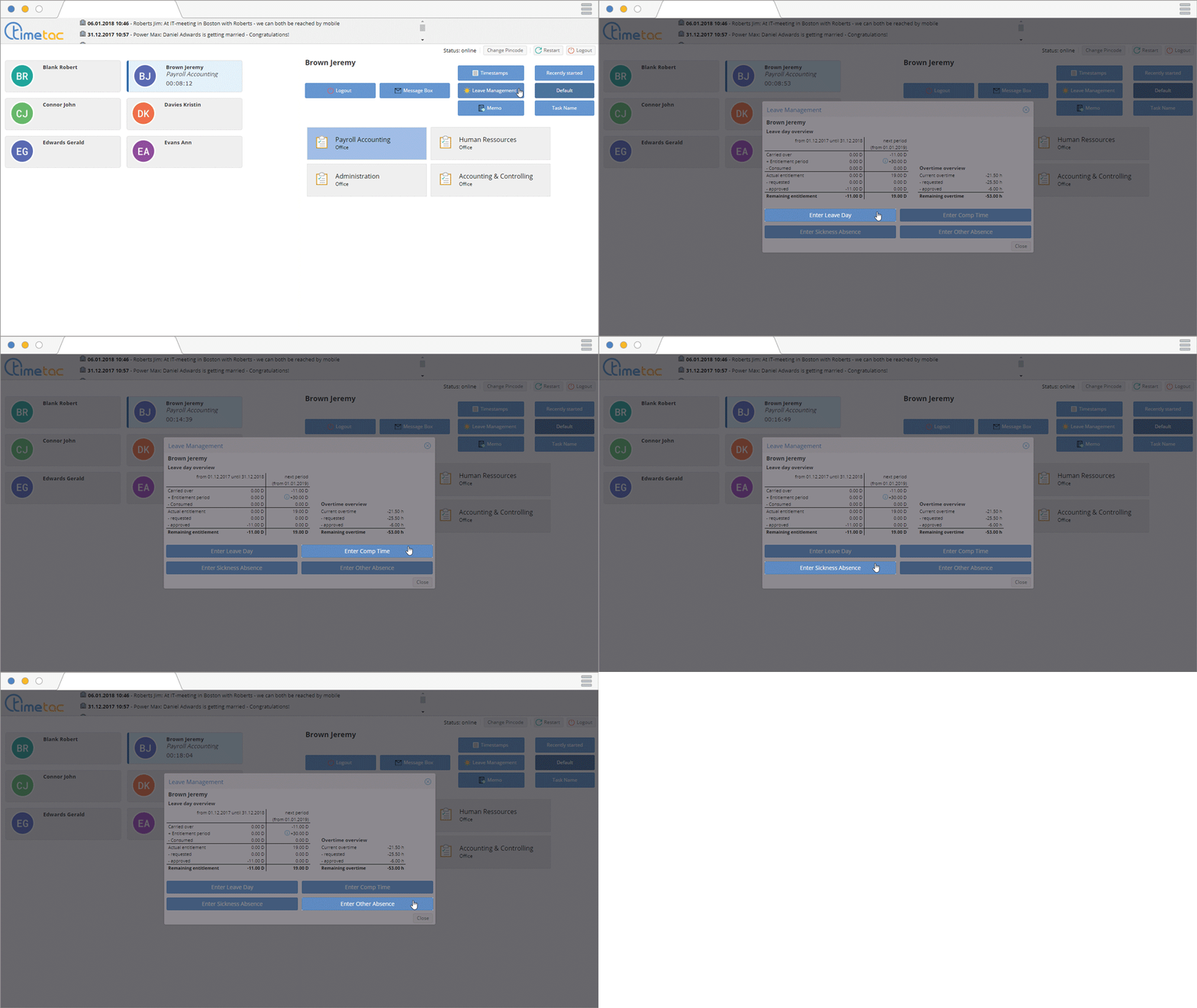
In case Leave Management is activated you and your employees can request different absences via the multiuser access. After logging in click on Leave Management. Now you can request Leave Days, Comp Time, Sickness Absence or Other Absences. The multiuser access also shows you your current overtime hours and your leave entitlement.


