
TimeTac gives you the opportunity to show the GPS data when you are tracking your time via the smartphone app.
MobileAccess
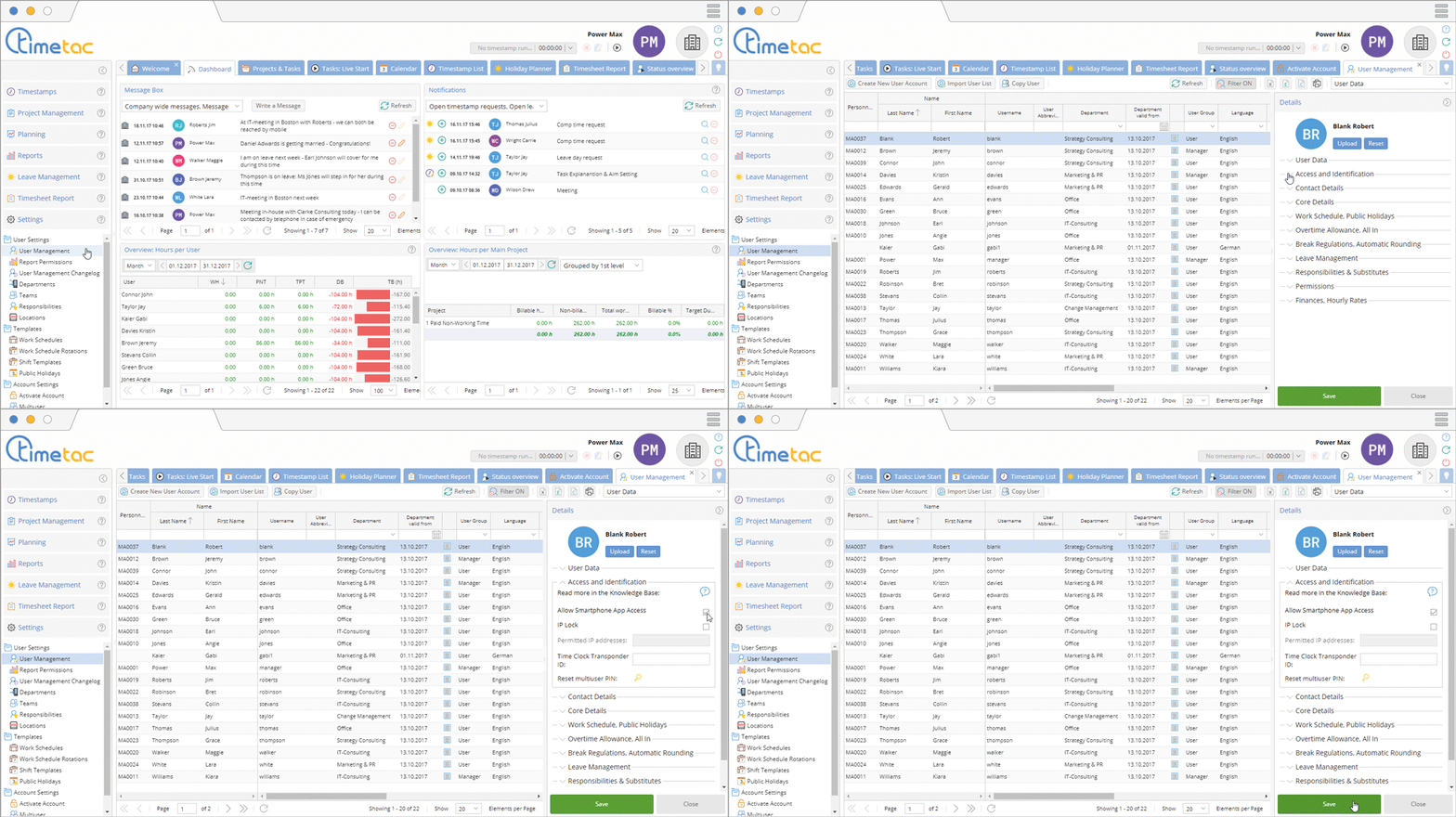
In order for your employees to be able to track time via the mobile app you have to grant them the necessary rights.
Find out more about apps: Use Case Situations, Android App for Users, Android App for Managers, iOS App for Users, iOS App for Managers
Necessary Settings on your Phone
In order for correct geolocation data to be displayed in TimeTac in the Timestamp List, the GPS of your mobile phone must be switched on.
iOS
On the home screen of your Apple iPhone click on Settings and navigate to Location Services. In this sub menu you find another function which is called the same – Location Services. Click on the button to activate GPS.
Android
You can either activate GPS via the menu Settings or via the notification line.
Activate GPS via Settings: Navigate to the Menu and select Settings from the menu. Navigate to Location > Mode and select High Accuracy. Activate GPS via the Notification Tray: Simply pull down the notification tray and click on the GPS symbol.
Windows Phone
Navigate to the menu and select Settings > System GPS. Activate GPS on the register card.

You can see the geolocation of the different time stamps in the timestamp list. Open the timestamp list and click on the geolocation icon next to the desired time stamp. Now you can see the location and where the timestamp has started and ended. The geolocation will be displayed in a Google Map.


