
Holiday Restriction
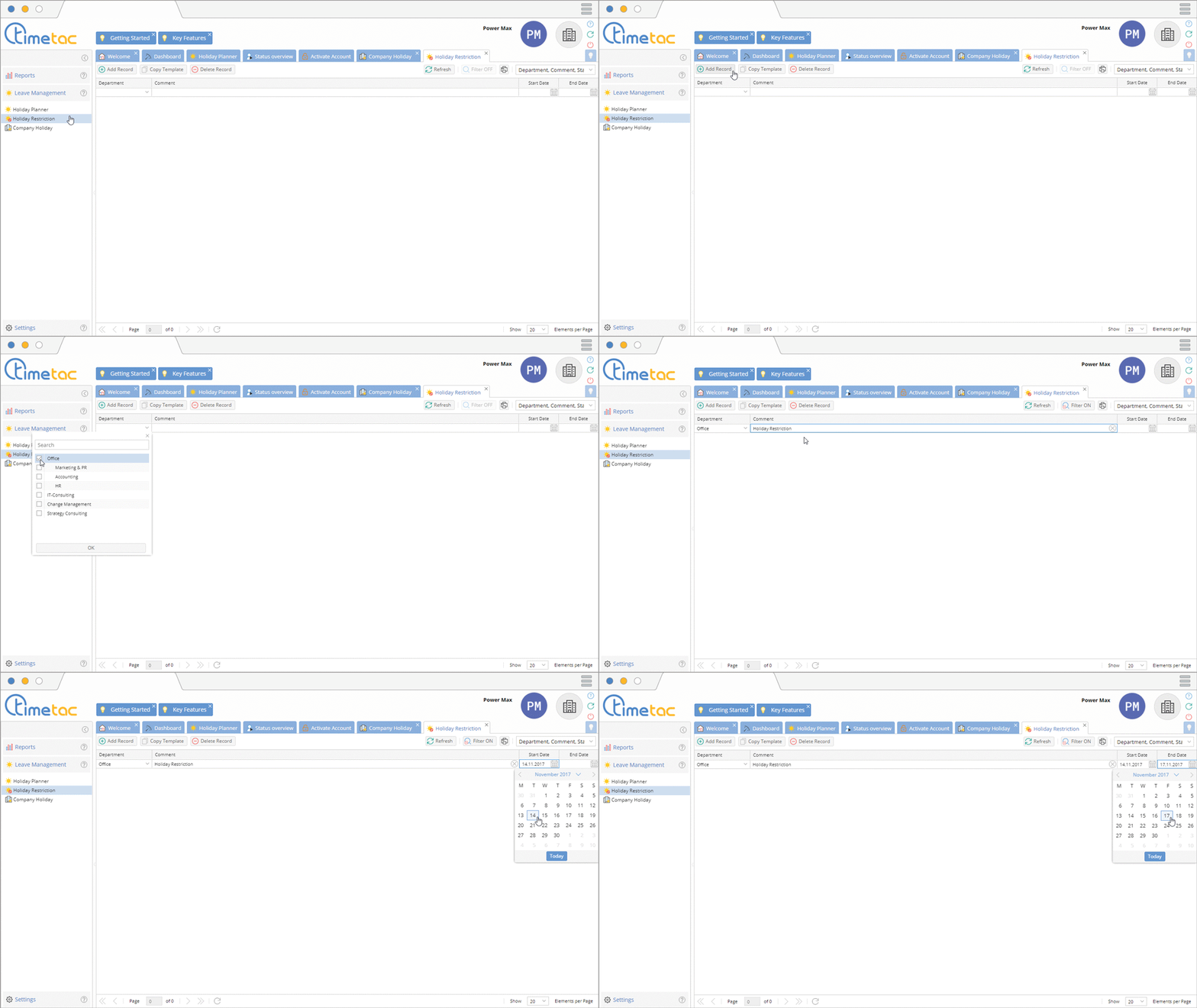
Click on the menu Leave Management and then Holiday Restrictions to adjust the settings for holiday restrictions. Click on Add Record to create a new holiday restriction. To copy an existing holiday restriction click on Copy Template. You can delete an already existing holiday restriction by clicking on Delete Record. The following settings are adjustable when creating a new holiday restriction:
- Departments: Double-click to choose when the holiday restriction should be applied.
- Comment: Here you can note particular operational events that make a holiday restriction necessary.
- Start Date: Double-click to enter a start date or click on the calendar symbol to select a start date.
- End Date: Entering the end date goes along with the start date. An additional save is not necessary.
Company holiday
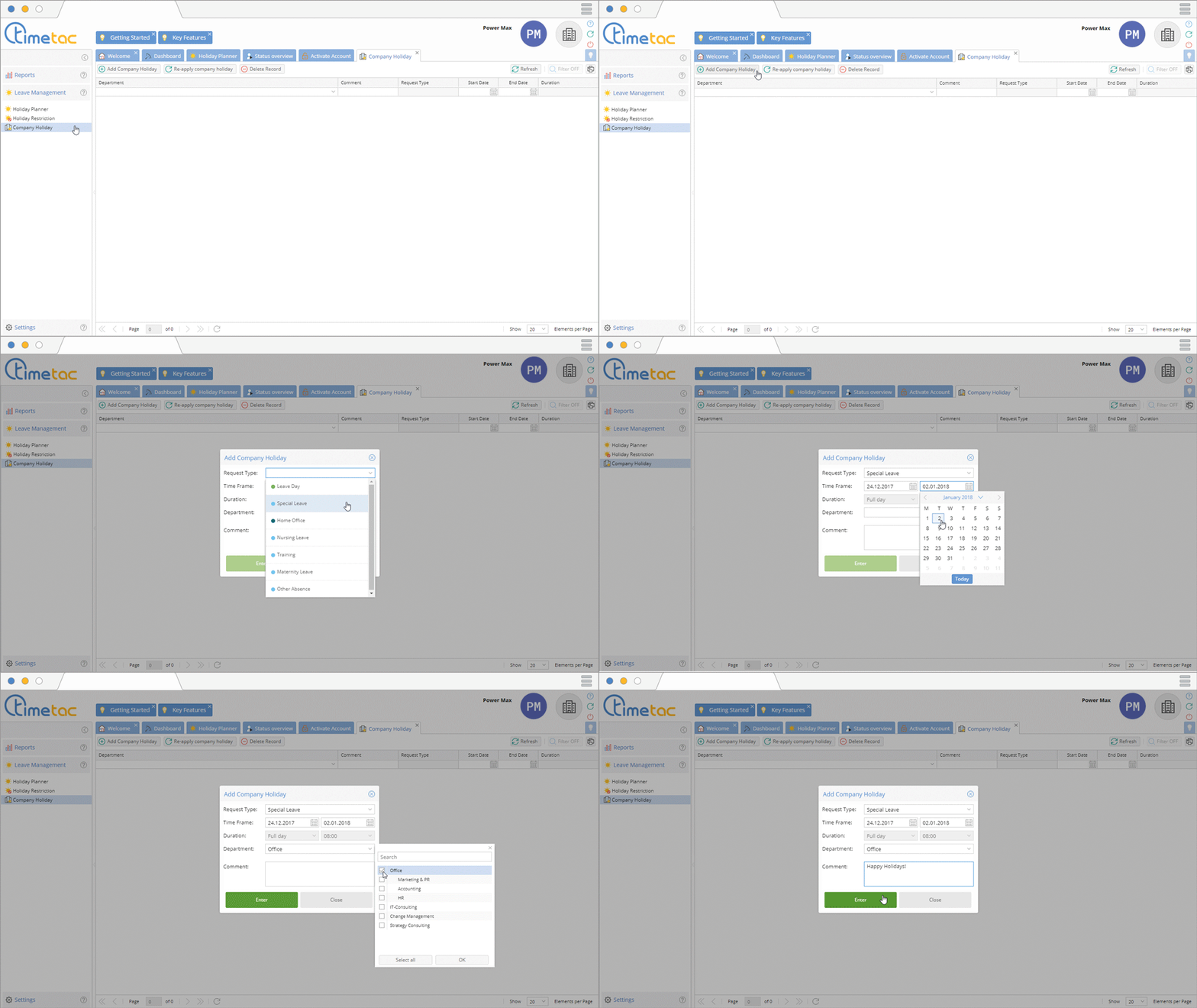
To add a company holiday for your employees, click on the menu Leave Management and then Company Holiday. Click on Add Company Holiday. The entry can be deleted with one click on Delete Record. When creating a company holiday, the following settings are adjustable:
- Request Type: You can choose the request type of absence from the drop down menu.
- Time Frame: Click on the calendar symbol to enter a time frame for your company holiday.
- Department: You can choose a company holiday for certain employees with a click on Department.
- Comment: Comments can be added for clarification. After clicking Enter the company holiday is saved.


