
Thank you for choosing the Employee Time Tracking solution from TimeTac. The following are recommended steps to get used to TimeTac and to optimally setup your account so that it is ready for your employees to use.
First Steps
-
Login
You can use TimeTac in any modern desktop browser by navigating to go.timetac.com/(accountname).
Enter your Username and Password, then proceed to login.
Read more: How to Use TimeTac
-
Dashboard
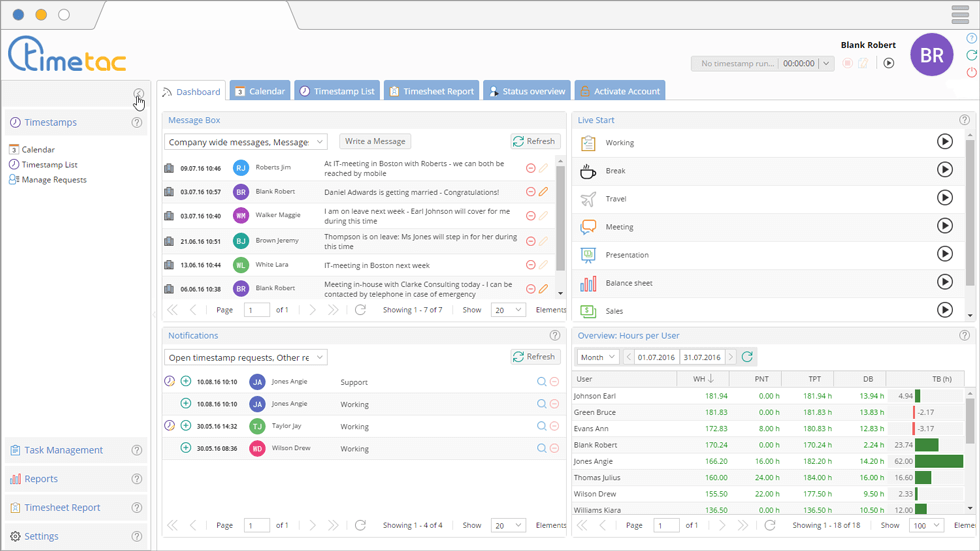
The is the homepage of TimeTac, showing you key information, such as working hour statistics, notifications and messages from other employees. There are also buttons to begin tracking your working time.
The key menu options are displayed in tabs across the top. There is also a side menu on the left-hand side. You can open and close this by clicking on the arrow button located near the top.
Read more: Dashboard
-
Change your Password and Contact Details

As we are currently on the , click on the button. This can be found in the top right corner of every screen.
Read more: Change User Details and Password
-
Start and Stop your First Task
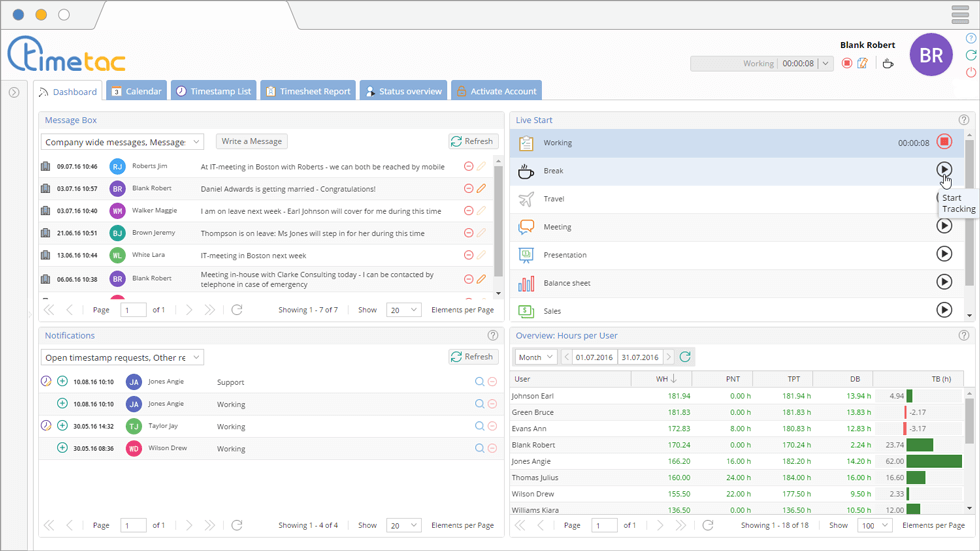
Click on the button beside . This will begin tracking your working time. A timer will appear to show the current duration. To stop tracking, simply click on the stop symbol. You can alternatively click on to track your break times; this will automatically stop the Working task.
You can use the Quick Start in the header area to search for your desired task. There are additional buttons here for taking a break, adding a memo to the current timestamp and stopping your current task. If you are currently tracking a break, then the break button will allow you to quickly start your previous task once again.
When you click on Logout at the end of the working day, you will be prompted to end your time tracking.
Read more: How to Track Time
-
View your Working Time
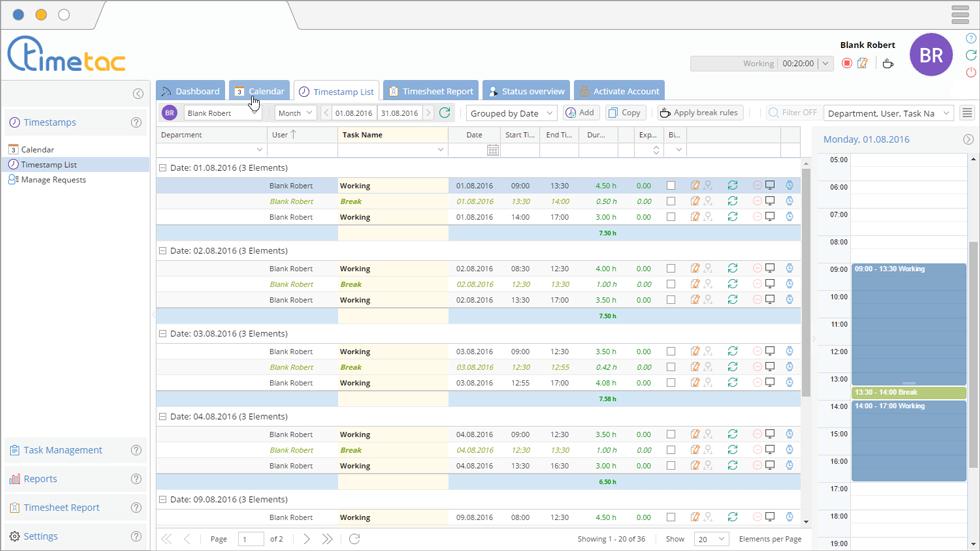
Working times are stored as Timestamps in TimeTac. These are records of the start time, end time, duration and some other details regarding each time tracking event. Click on the Timestamps menu and select Timestamp List to see a display of your working hours in a detailed format.Alternatively, for an overview of working hours, you can also click on the Calendar display too. Both displays have numerous filters in the left-hand side menu to filter the exact data you wish to see. You can also request alterations to working times here, should there have been any errors while time tracking.
Read more: What is a Timestamp?, Timestamps List View, Calendar
-
Status Overview Screen
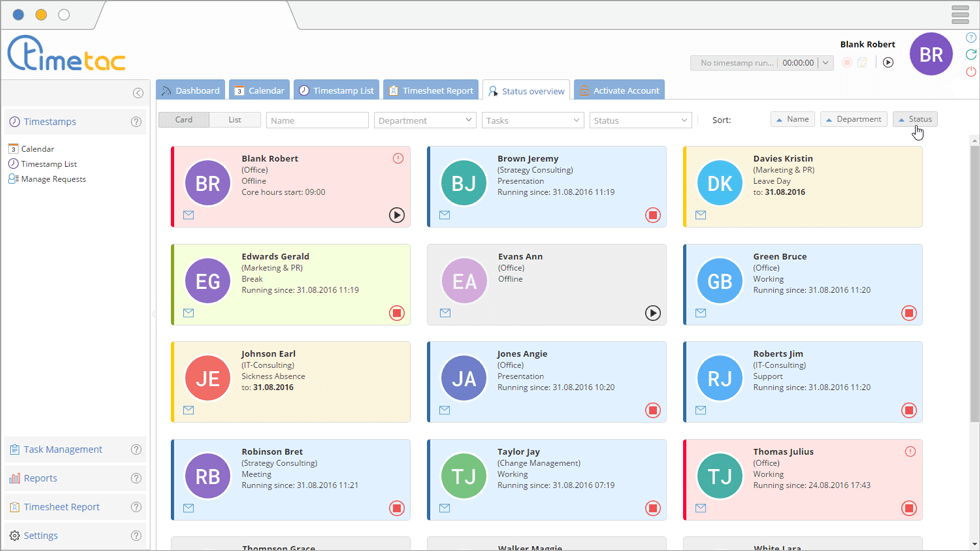
The tab shows you the current working status of other employees within your department. Only Managers have access to this screen by default, but it can be enabled for individual Users as well. This is convenient for seeing who is currently online, absent, sick etc.
Read more: Status Overview
-
Create a Work Schedule
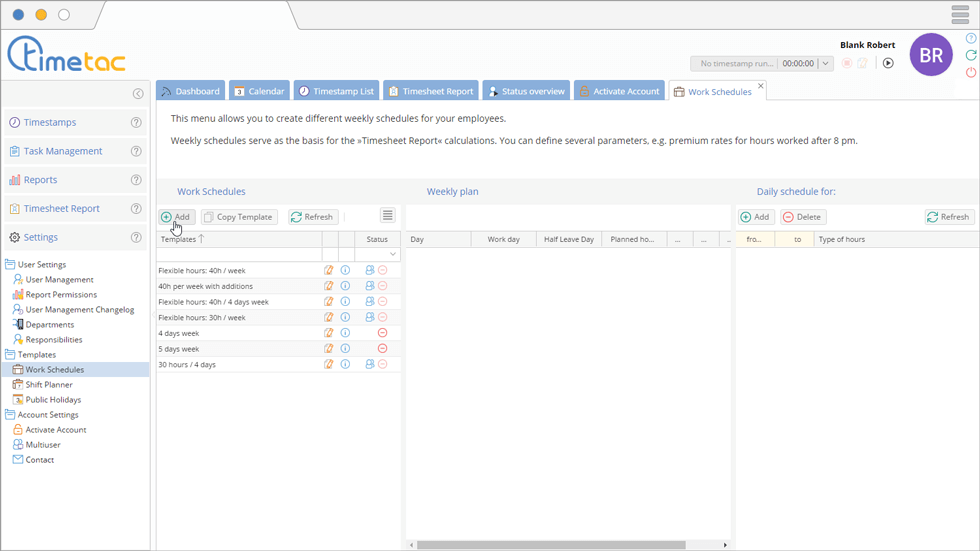
Work schedules are the templates which tell TimeTac when and for how long an employee should work. For example, a simple work schedule might be based on a Monday to Friday working week, with each day requiring 8 hours of working time, accumulating in a 40 hour working week.
By configuring this in TimeTac, you can see statistics of actual hours worked against normal working hours, allow automatic calculation of any necessary overtime payments and ensure that employees are present during the core office hours.
Work schedules can be found in the menu. You can create numerous schedules with various working hours per individual day. Each day can also have specific sets of hours, such as Normal Working Hours, Core Hours, Overtime 50% and more.
Read more: Work Schedules Overview
-
View the Timesheet Report
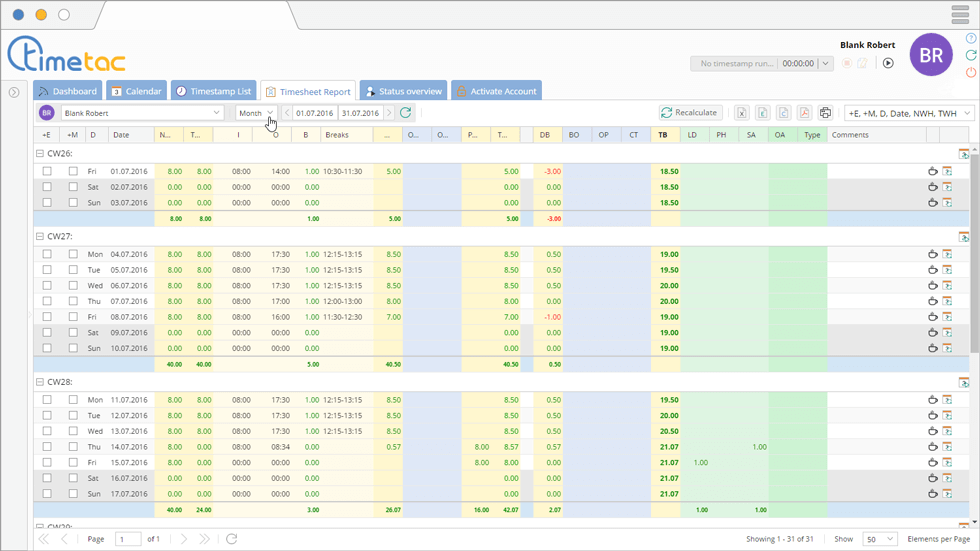
Now we have the schedule in place to tell TimeTac what your working routine is, we can take a look at how this will be beneficial to you. Click on the tab. This is a detailed insight into your working hours, with comparisons to the target working hours. It then displays values relating to hours worked, any necessary overtime earned, as well as any public holidays or other absences.
If you are also using the Leave Management solution, then annual leave, public holidays etc. are automatically integrated into the and do not need to be entered manually.
Read more: Timesheet Report Overview
-
Create Departments
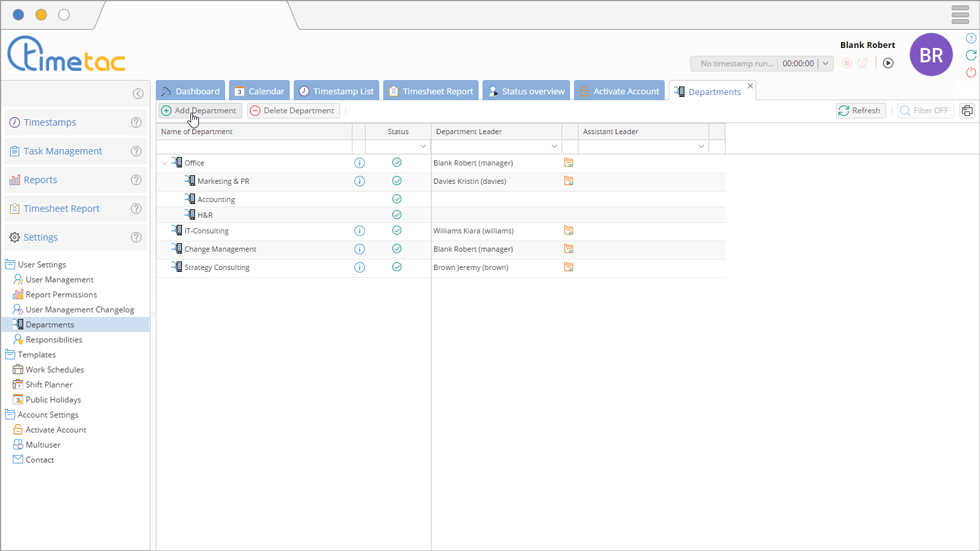
Now it’s time to start preparing the account for other employees to use. Firstly, start by creating departments and organising the department structure of your company as you wish. Even if you are a small company with no departments, it’s still worth reading as you will learn more about what data employees can view within your company.Read more: Create Departments
-
Create User Accounts for Other Employees
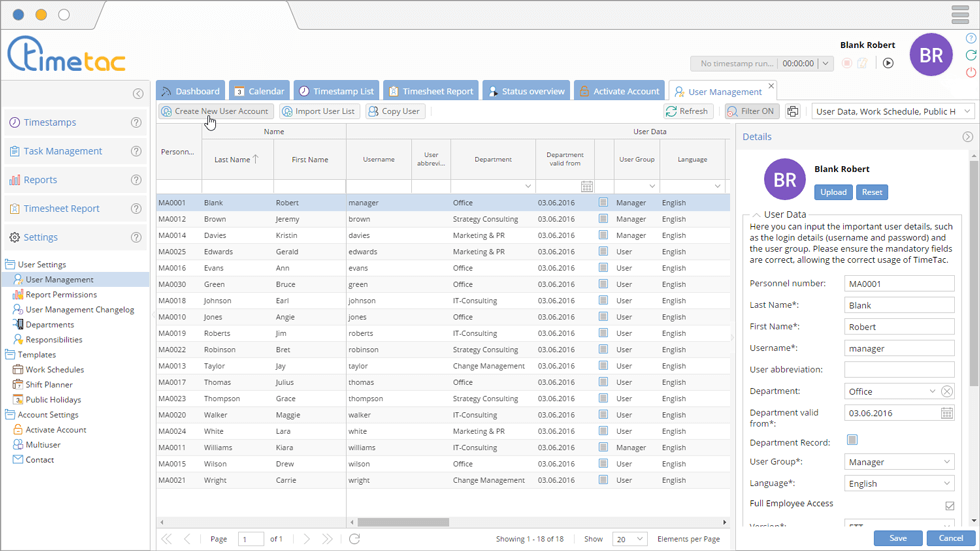
It is recommended to read the articles about individual permissions and user types in TimeTac before creating users. Once you have this knowledge in mind, you can then create a user and modify their permissions as you see fit. You can make the entire process of account creation much quicker and more efficient by copying a pre-existing user with the desired permissions.
If you are a large company, then there are also options to import multiple users at once.
Read more: Types of User, User Permissions, Create User
-
Assign Work Schedules to Employees
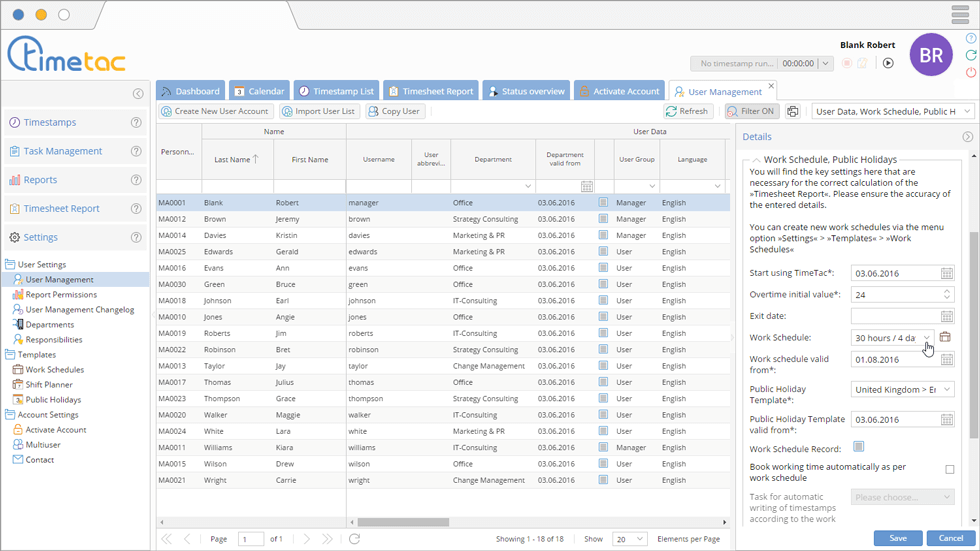
As mentioned earlier, it is essential to the functionality of Employee Time Tracking that the users are assigned to a work schedule. Assign your employees to a work schedule in the menu.
Remember, there are no limits to the amount of work schedule templates that you can create. You can also assign 1 or 100 users to a single template.
If the working schedule of the employee ever changes, it can be easily changed as of a date that you specify. For example, you can specify that as of the beginning of this month, an employee changed their work schedule. The previous work schedule will remain in effect until that date, then the new one will take over.
Read more: User Management – Work Schedules
-
Responsibilities
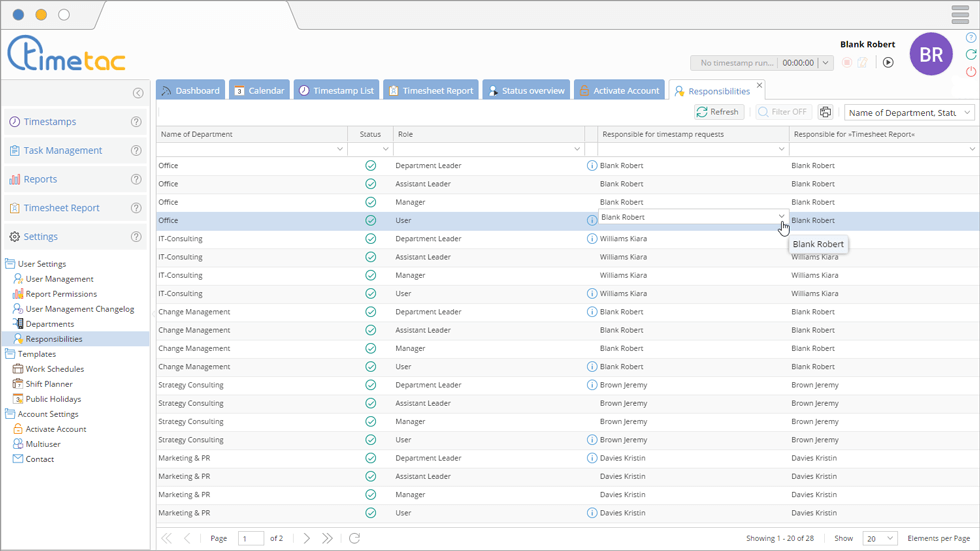
The menu allows you to define who is responsible within a department for processing certain types of requests, such as timestamp alteration requests. This is the department leader by default, but this can be customised to match your needs.Read more: Responsibilities
-
Employee Statistics
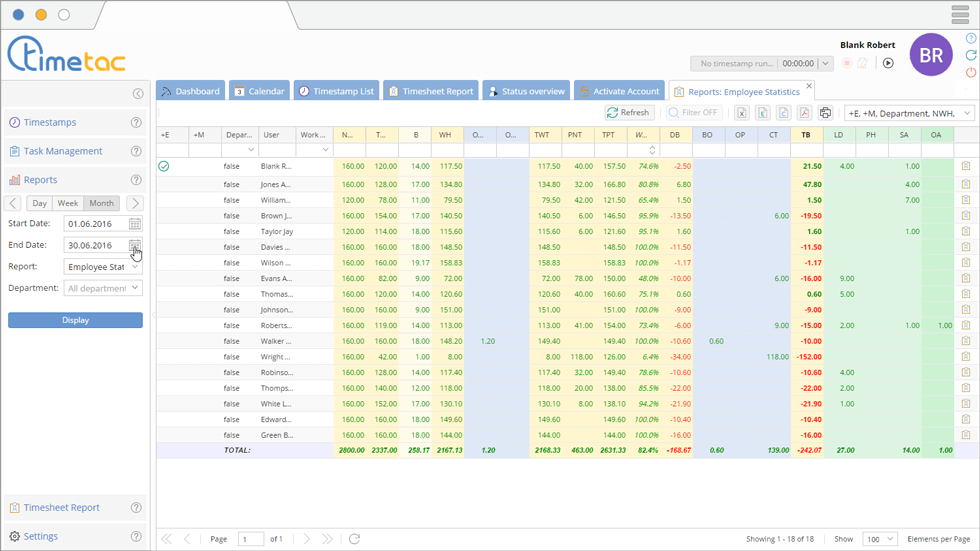
Now that your employees are in place within the system and they have begun tracking their working time, you can begin to look through the many statistical and reporting options within TimeTac. Within the menu, you will find one of particular importance: the report.
This will show you a breakdown of employee working hours, similar to the , but for a customisable time frame.
Read more: Employee Statistics, Department Statistics


Ready to Start Using TimeTac?
We hope this guide has helped you get up and running with our time tracking solution. If you have any questions, then please feel free to contact us.
If you are ready to start using TimeTac within your company, then we suggest you return to the screen and click on . This will remove all the demo generated content that was present when you first logged in, such as demo users and demo notifications. It will not remove anything you have created yourself.
The next step is to head to the tab. This will activate your account so that you can continue to use it after the trial phase has ended.
Thank you for using TimeTac!


