
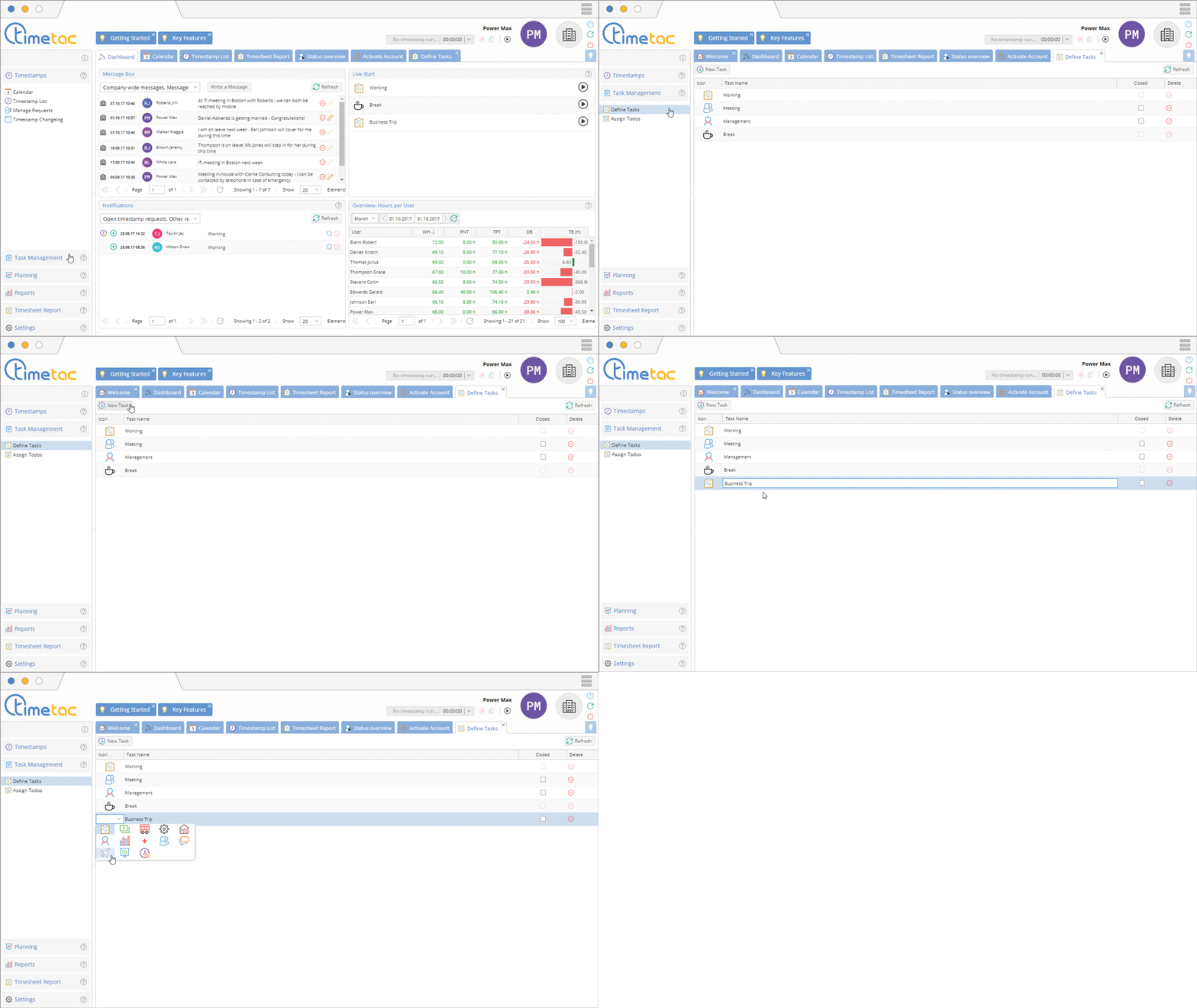
Here you can define different tasks for your employees. Change to the menu Task Management and click on Define Tasks. To create a new task click on New Task. You can allocate an icon to the task when you double click on the icon on the left side of the task. Now you can select an icon via the drop down menu.
Assign Todos

You can allocate your employees to different tasks. Change to the menu Task Management and click on Assign Todos. Select which employee you want to assign for a particular task. With a click in the checkbox in the different columns you can assign different tasks.
Starting a new Task
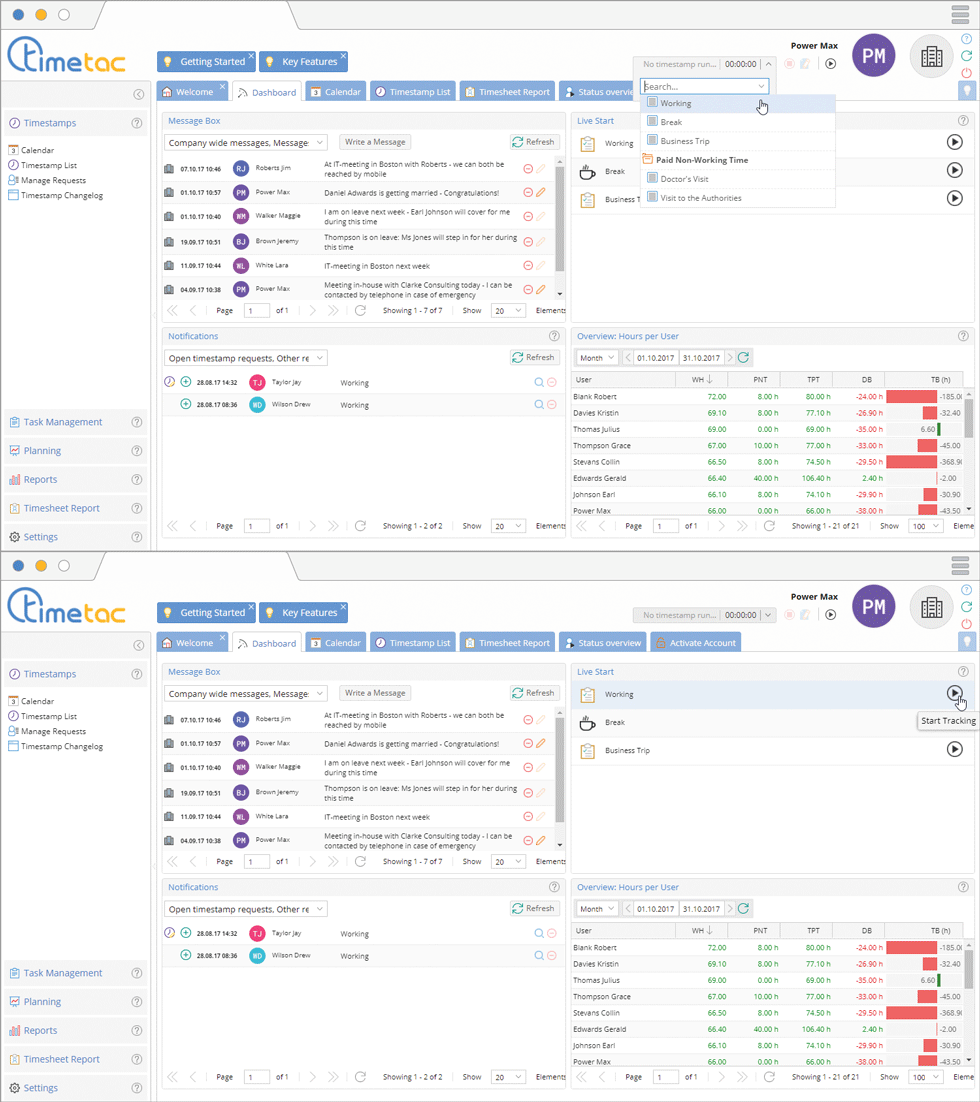
The newly allocated tasks can be found on your Dashboard or Quick Start Dropdown after a program restart.
Closing and Deleting Tasks

Tasks for which a timestamp already exists can be closed with a click in the checkbox in the column Closed. The timestamps will remain unchanged. Tasks where no timestamp has been created yet can be deleted with a click on the Red Minus Symbol.
Find out more about Time Tracking : Employee Time Tracking – First Steps, Employee Time Tracking Overview


