
In the coming days, your account will be updated to the latest version of TimeTac. This version includes the new feature of managing your Single Sign-On (SSO) configuration directly within TimeTac.
In addition, there are some slight changes in the way the login process will work when you use the web version of TimeTac.
If your SSO configuration is set to “Optional“, when you navigate to your company login screen (e.g. go.timetac.com/yourcompany), you will be presented with two options. You can either:
- enter your username and password, then click on “Login“, or;
- you can click on “Login with SSO” to use your SSO credentials

If your configuration is set to “Required“, when you navigate to your company login screen (e.g. go.timetac.com/yourcompany), you will automatically be redirected to your SSO login screen.
“Required” configurations are currently not supported in our iOS and Android apps, but this feature will be coming to both platforms within the next few weeks. In the meantime, the configuration will behave as an “Optional” SSO workflow, presenting both options for login to your employees.
Why are we doing this?
This allows our customers with optional configurations the ability to present both login options to their users. Companies which enforce the use of SSO credentials for TimeTac can set their configuration to “Required“, ensuring only the SSO login credentials are used.
How can I see whether I have an optional or required configuration?
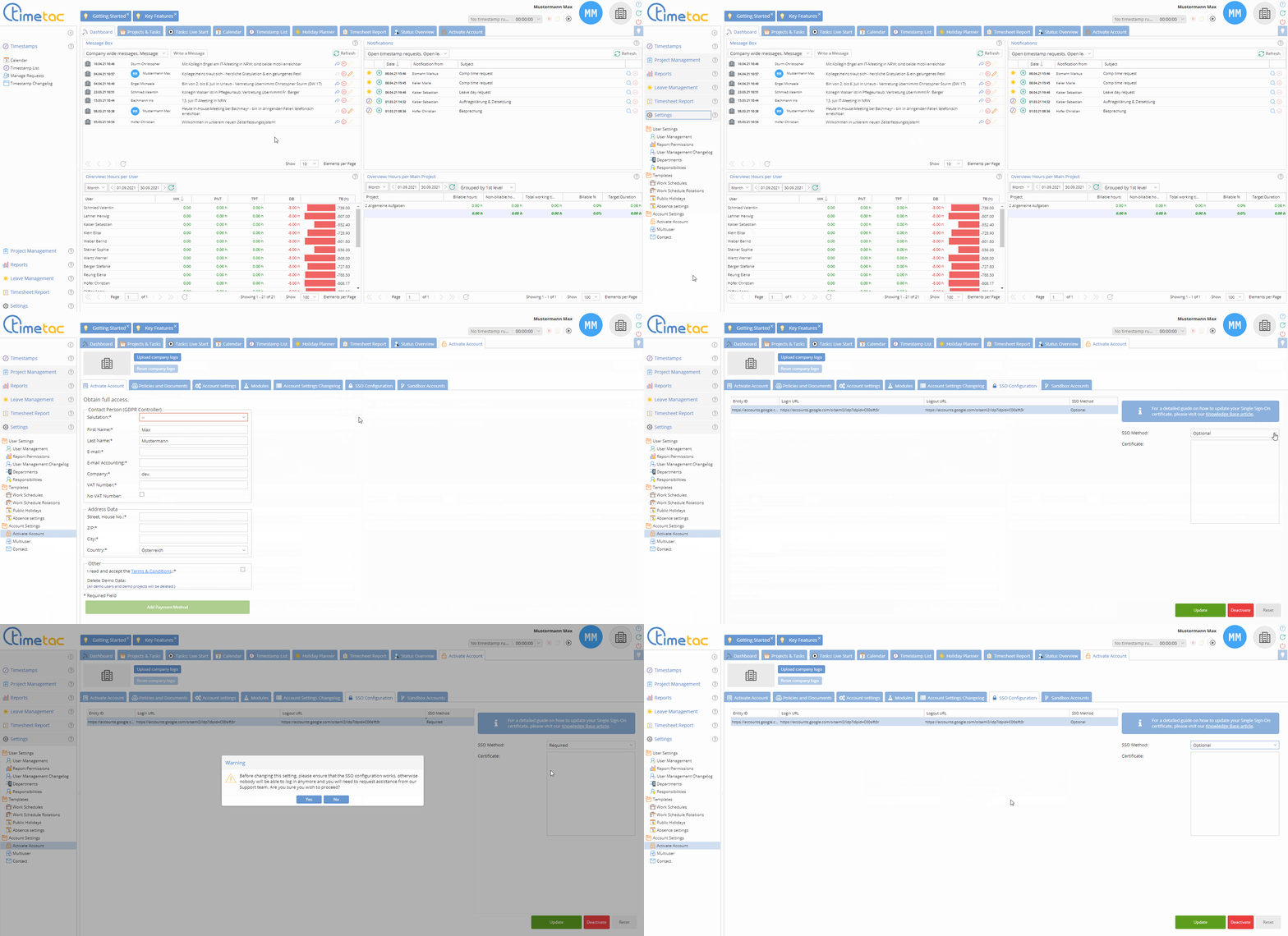
This can easily be viewed and changed within the application. Once you have the latest version of TimeTac, you will find the “SSO Configuration” menu option within “Account Management”.

For further details on managing the options of SSO, please read this introductory article to SSO.
If you have any questions on this topic, please do not hesitate to get in touch with us.


