
With TimeTac it is possible to subscribe to the different calendars in Outlook.
Annual Calendar
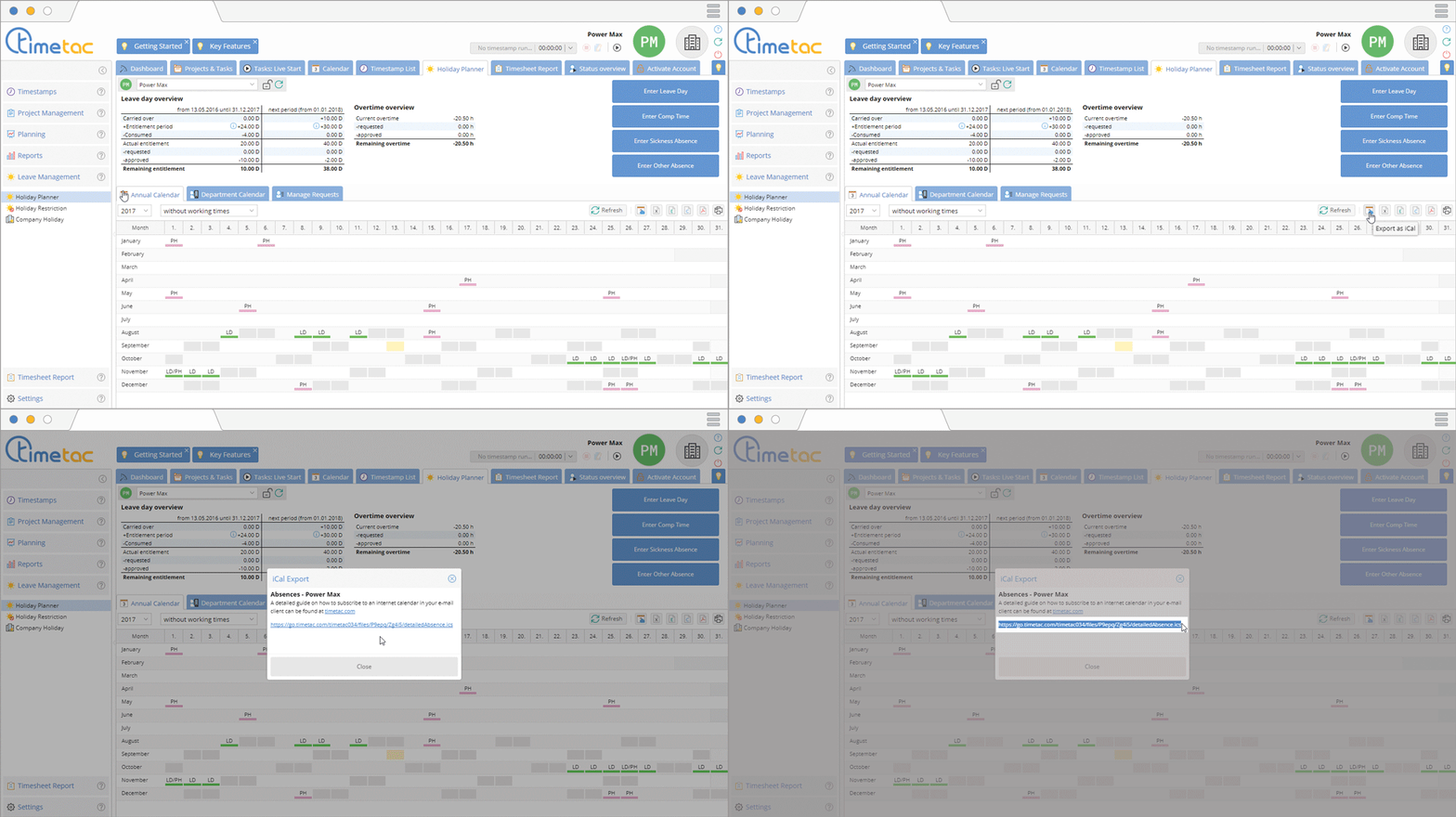
Open the Holiday Planner and click on Annual Calendar. Then click on the iCal-Symbol. Copy the link with the combination Ctrl+C.
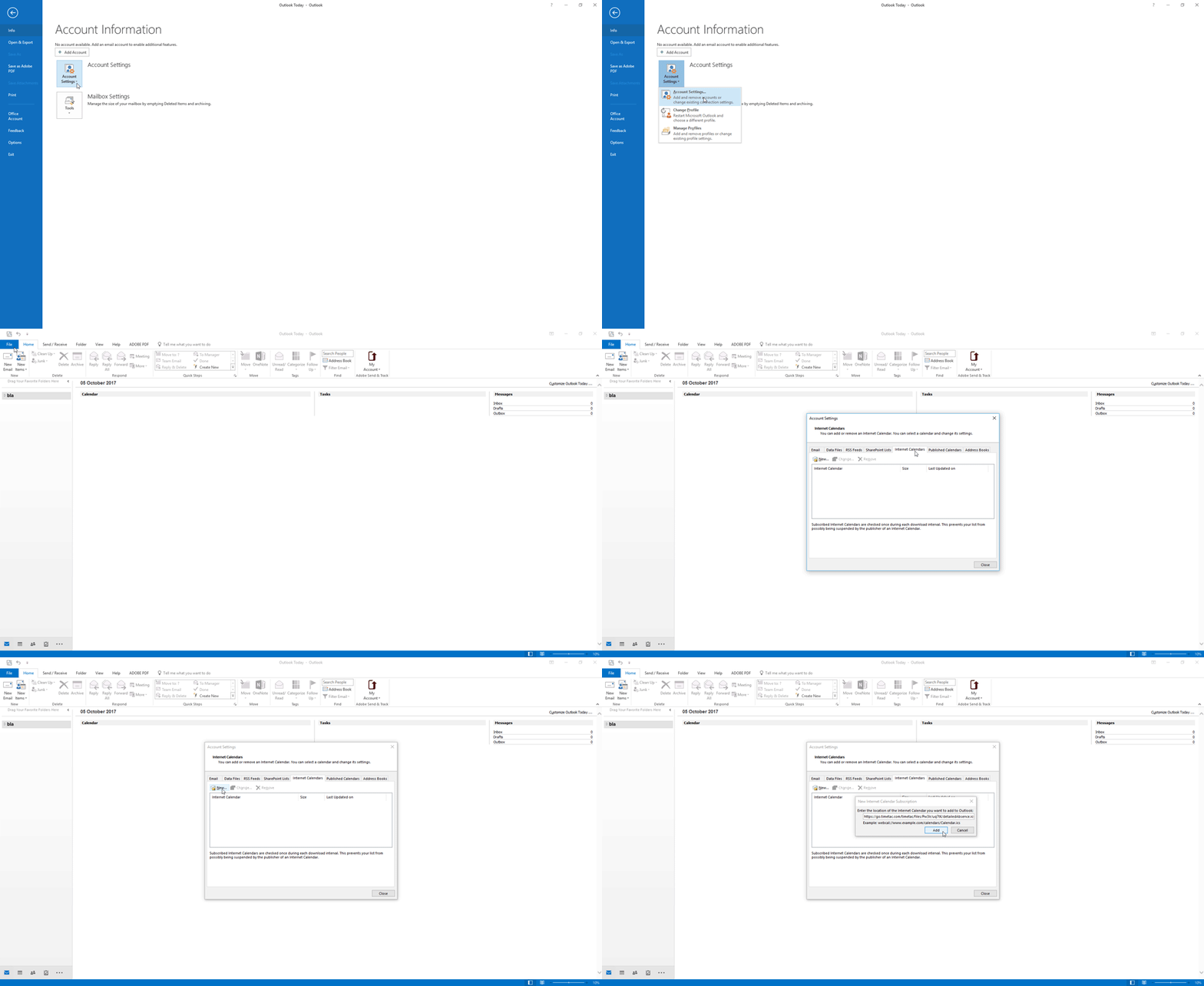
Change to Outlook, click on File and select Account Settings. In the pop-up showing up now, select the tab Internet Calendar and select New. In the open field paste the earlier copied link and click on Add. A pop-up window appears and all that needs to be done now is press OK. When you are done, the Holiday Planner from TimeTac is connected with Outlook. There is an update every 12 hours.
More information to this topic can be found here: Annual Calendar
Department Calendar
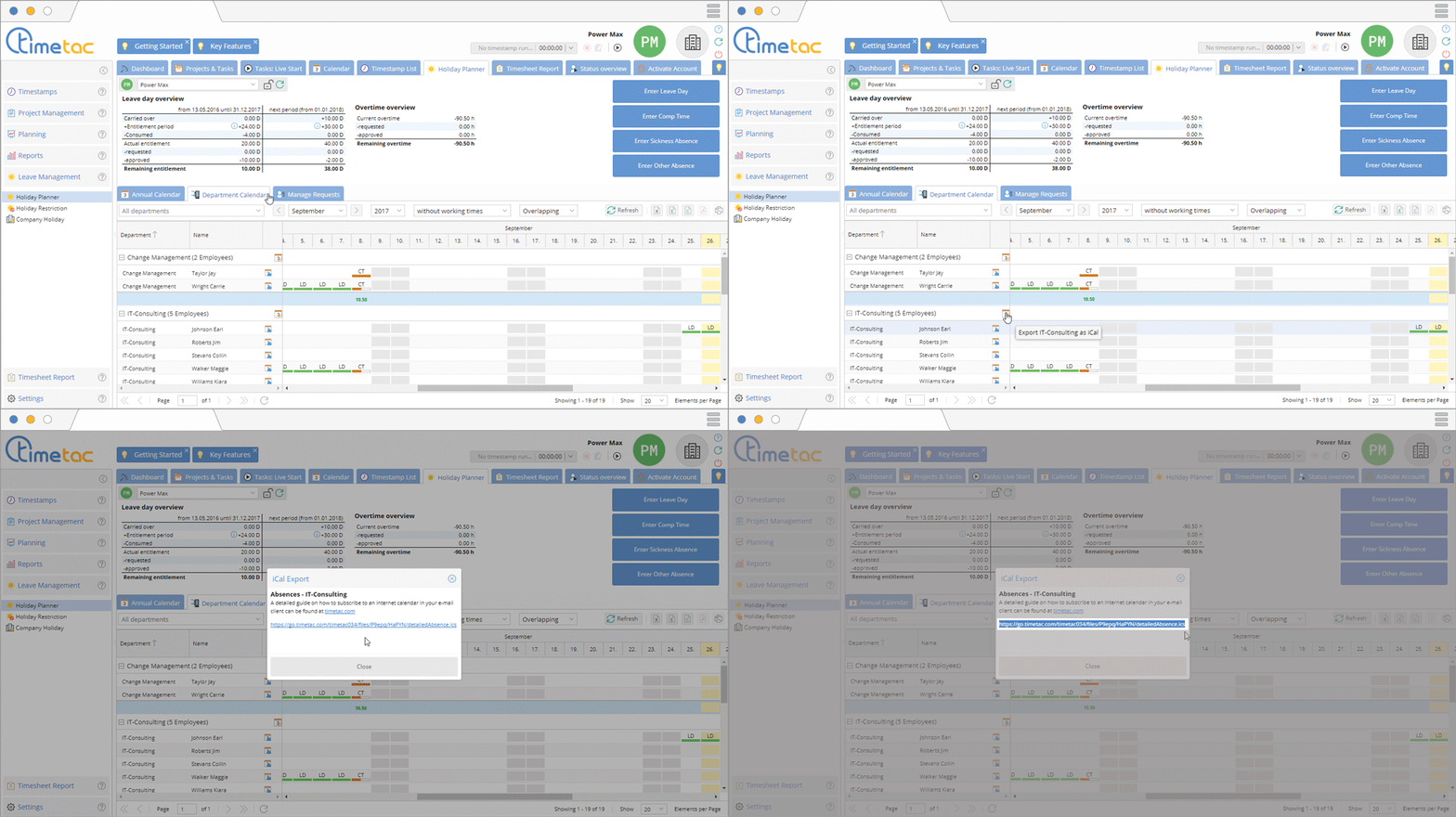
Open the Holiday Planner and click on Department Calendar. Then click on the iCal-Symbol. Copy the link with the combination Ctrl+C.
Change to Outlook, click on File and select Account Settings. In the pop-up showing up now, select the tab Internet Calendar and select New. In the open field paste the earlier copied link and click on Add. A pop-up window appears and all that needs to be done now is press OK. When you are done, the Holiday Planner from TimeTac is connected with Outlook. There is an update every 12 hours.
More information to this topic can be found here: Department Calendar
Subscribe to Planned Data in Outlook
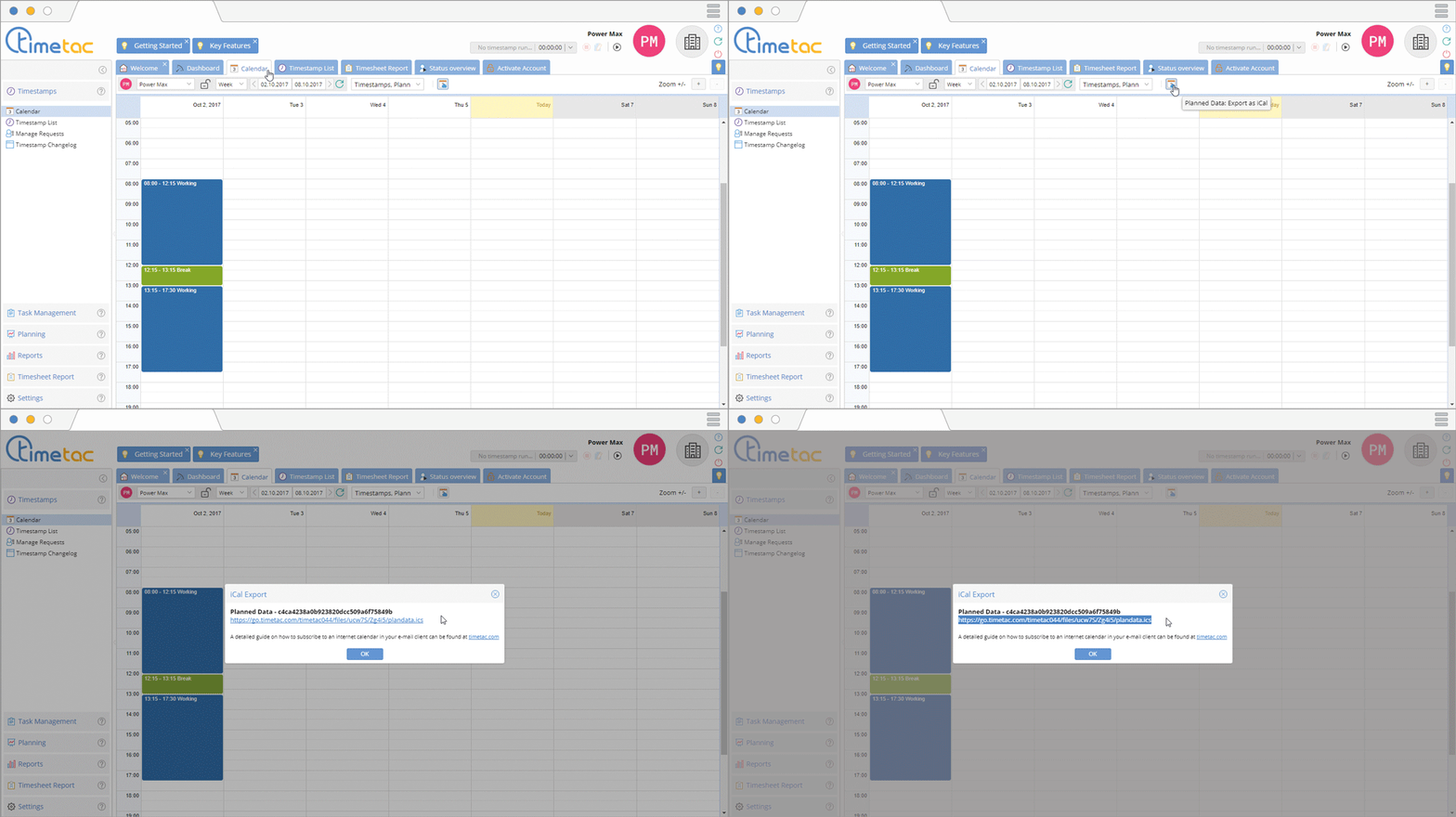
Open the calendar and click on the iCal-Symbol. Copy the link with the combination Ctrl+C.
Change to Outlook, click on File and select Account Settings. In the pop-up showing up now, select the tab Internet Calendar and select New. In the open field paste the earlier copied link and click on Add. A pop-up window appears and all that needs to be done now is press OK. When you are done, the Holiday Planner from TimeTac is connected with Outlook. There is an update every 12 hours.
More information to this topic can be found here: Calendar view


