
The menu Report Permissions is available in every TimeTac product. Here you can define which user has access to which reports. Depending on the product there are different report options available.
More information can be found here: Employee Statistics, Department Statistics, Reports Overview, Leave Management Reports
Leave Management

Leave Management: To make adjustments, navigate to the menu Settings. Click on Report Permissions. The users are alphabetically listed. Leave Management offers two different options to report permissions: ES (Employee Statistics) and DS (Department Statistics). Click in the checkbox next to the desired user to enable a particular report option.
Employee Time Tracking

To make adjustments, navigate to the menu Settings. Click on Report Permissions. The users are listed alphabetically. Employee Time Tracking offers two different options to report permissions ES (Employee Statistics) and DS (Department Statistics). Click in the checkbox next to the desired user to enable a particular report option.
Project Time Tracking

To make adjustments, navigate to the menu Settings. Click on Report Permissions. The users are listed alphabetically. Project Time Tracking offers the most options to report permissions. Click in the checkbox next to the desired user to enable a particular report option.
- E&D: User and Date
- F:Planning Statistics
- FD: Detailed Planning Statistics
- P&E:Project and User
- UPCT: User, Project, Client, Task Type
- P: Project Report
Filter options
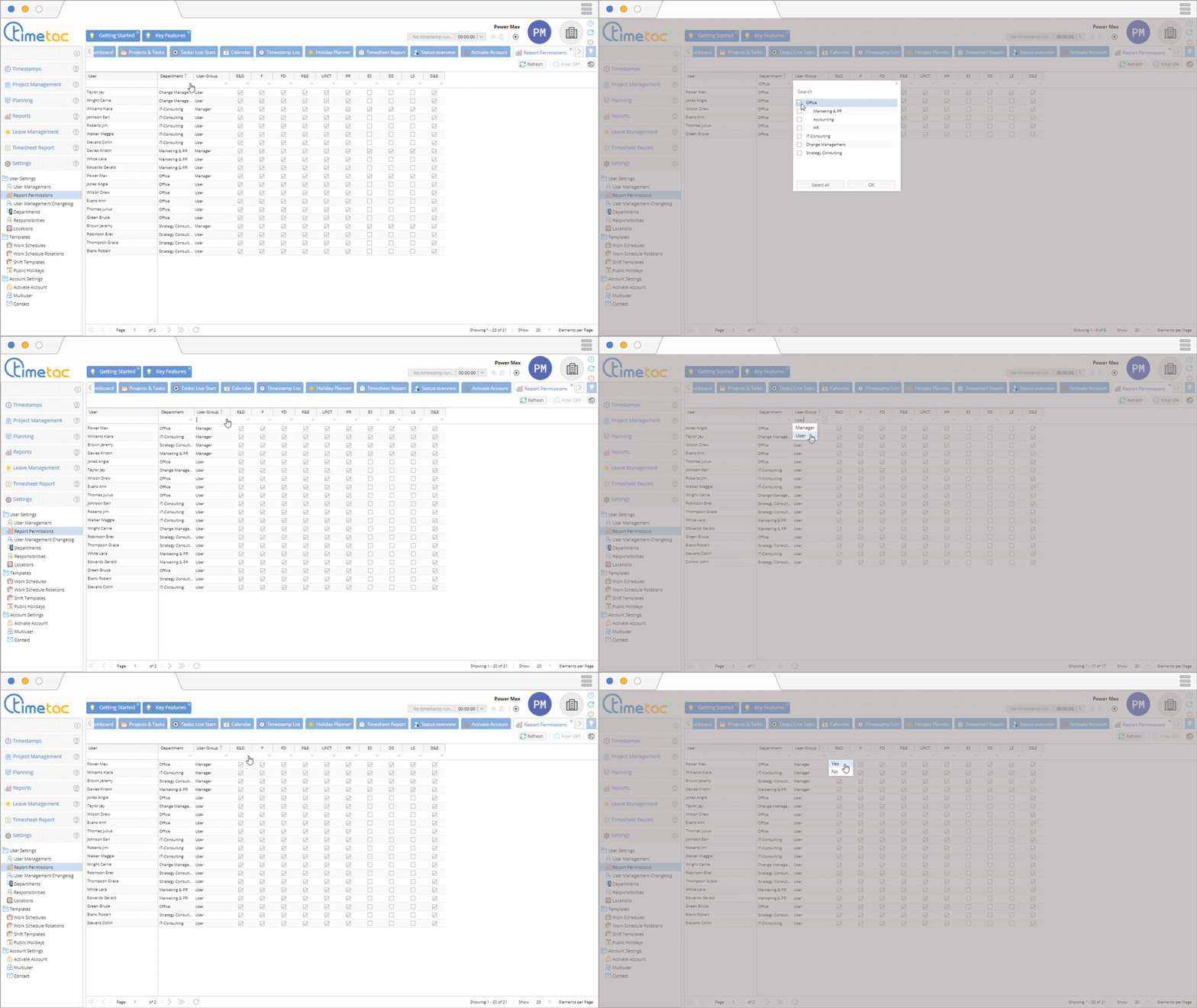
You can activate filters in every column with the drop down menu. To view the filter options in each column click on the small arrow. Click on the desired option to set a filter.
Sorting columns

The columns User, Departments and User Group can be sorted alphabetically. An arrow pointing upwards shows the column is sorted in an ascending order, an arrow pointing downwards shows it is sorted in a descending order.
The menu Report Permissions is available in every TimeTac product. Here you can define which user has access to which reports. Depending on the product there are different report options available.
More information can be found here: Employee Statistics, Department Statistics, Reports Overview, Leave Management Reports
Leave Management
Leave Management: To make adjustments, navigate to the menu Settings. Click on Report Permissions. The users are alphabetically listed. Leave Management offers two different options to report permissions: ES (Employee Statistics) and DS (Department Statistics). Click in the checkbox next to the desired user to enable a particular report option.
Employee Time Tracking
To make adjustments, navigate to the menu Settings. Click on Report Permissions. The users are listed alphabetically. Employee Time Tracking offers two different options to report permissions ES (Employee Statistics) and DS (Department Statistics). Click in the checkbox next to the desired user to enable a particular report option.
Project Time Tracking
To make adjustments, navigate to the menu Settings. Click on Report Permissions. The users are listed alphabetically. Project Time Tracking offers the most options to report permissions. Click in the checkbox next to the desired user to enable a particular report option.
- E&D: User and Date
- F:Planning Statistics
- FD: Detailed Planning Statistics
- P&E:Project and User
- UPCT: User, Project, Client, Task Type
- P: Project Report
Filter options
You can activate filters in every column with the drop down menu. To view the filter options in each column click on the small arrow. Click on the desired option to set a filter.
Sorting columns
The columns User, Departments and User Group can be sorted alphabetically. An arrow pointing upwards shows the column is sorted in an ascending order, an arrow pointing downwards shows it is sorted in a descending order.


